


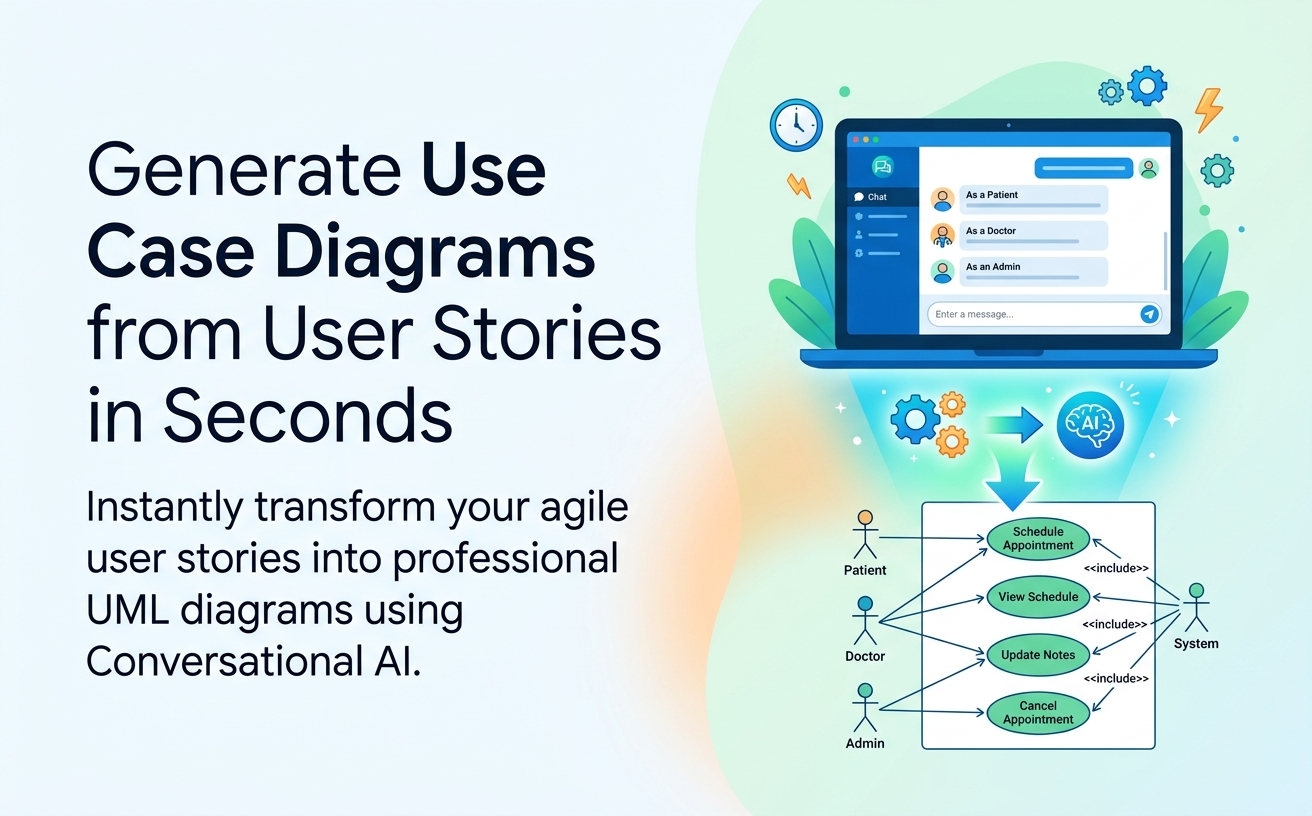
Agile teams often write dozens of user stories to fill backlogs in Jira or Azure DevOps, but text alone makes it hard to see the big picture. Translating scattered user stories into a visual UML Use Case Diagram clarifies system boundaries, identifies missing actors, and prevents architectural gaps before development begins.
In this step-by-step tutorial, you will learn how to take a raw set of Agile user stories and instantly generate a complete, syntactically correct use case diagram using conversational AI in seconds.
Why Convert User Stories to Use Case Diagrams?
User stories are fantastic for planning individual sprint tasks, but they lack spatial context. Converting stories into a UML use case model delivers key architectural benefits:
- Identifies Duplicate Roles: Maps varied story personas into consolidated UML Actors.
- Uncovers Hidden Dependencies: Spots shared behaviors that should be modeled as
<<include>>or<<extend>>relationships. - Defines Clear Boundaries: Establishes explicit system limits across multiple user stories and epics.
Prerequisites & What You Need
To follow this tutorial, you only need:
- A set of user stories written in standard format (“As a [Role], I want [Action], so that [Benefit]”) or plain English requirements.
- Access to Visual Paradigm’s AI Diagramming Chatbot (available via web browser, VP Online Deluxe Edition, or VP Desktop Professional Edition).
Step-by-Step Conversion Workflow
Step 1: Collect and Organize Your User Stories
Gather the user stories you want to model. For best results with AI generation, group related user stories from the same epic or functional module together.
Step 2: Open the AI Diagramming Chatbot
Navigate to the AI Diagramming Chatbot or open the AI Chatbot window inside Visual Paradigm Desktop.
Step 3: Instruct the AI to Convert Stories to UML
Paste your user stories directly into the chat window with a clear instruction to extract actors, identify core goals, and map <<include>> or <<extend>> dependencies.
Step 4: Review in the Artifacts Pane
The AI will render the complete diagram instantly. Use the built-in Artifacts Pane to jump directly to generated diagrams or related artifacts created during your conversation.
Real-World Conversion Example & Prompt
Here is an example of converting raw user stories into a clean architectural model:
The AI Conversion Prompt:
Convert the following user stories into a UML use case diagram for a Healthcare Management System. Identify external actors, group user goals into use cases inside a system boundary, and show any mandatory sub-flows using <<include>>.

[Paste User Stories Here]
Refining & Expanding Your AI Diagram
Once your baseline diagram is generated, you can continue conversing naturally with the AI Chatbot to perform quick refinements:
- Add Missing Scenarios: “Add an extension use case for handling online payment during appointment booking.”
- Expand Specific Elements: “Expand the ‘Update Medical Notes’ use case into a new sub-diagram.”
- Export and Share: Save your session link using Shareable Sessions or export high-resolution SVG and PNG files for immediate team review.
Integrating with the Visual Paradigm AI Ecosystem
Generating the diagram is just the starting point. Seamless integrations across the Visual Paradigm platform turn your AI ideation into actionable software artifacts:
- Diagram-as-Code via VPasCode: Access transparent diagram code (PlantUML, Mermaid) to make exact textual adjustments or check models into version control.
- Visual Layout Polishing in VP Online: Export your generated diagram directly to Visual Paradigm Online for drag-and-drop shape adjustments, custom color palettes, and presentation prep.
- Formal Modeling in VP Desktop: Import generated use cases into Visual Paradigm Desktop to link them to class diagrams, requirements trace matrices, and full enterprise architectures.
- Living Specifications with OpenDocs: Send diagrams and generated textual specs straight to Visual Paradigm OpenDocs to create synchronized project documentation.
Frequently Asked Questions
Can the AI parse user stories written in non-standard formats?
Yes. Visual Paradigm’s fine-tuned model handles both formal user story templates and unstructured bullet points, accurately identifying actors and operational goals.
What happens if I update a user story later?
You can return to your saved chat session using Persistent Chat Sessions, tell the AI what changed, and it will update the existing diagram without recreating it from scratch.
Do I need a paid license to generate diagrams from user stories?
You can try the AI Diagramming Chatbot via free trial, with complete access included in VP Online Deluxe Edition and VP Desktop Professional Edition.
Related Links
- Visual Paradigm VPasCode interactive playground: Try out Visual Paradigm VPasCode in the VPasCode interactive playground
- VPasCode overview: Learn more about VPasCode
- Try the AI Diagramming Chatbot — Generate diagrams from natural-language descriptions and explore how AI can help with your modeling work.
- Explore Solutions & Use Cases — See how the AI Diagramming Chatbot can help you solve real-world modeling and diagramming needs across different industries and use cases.
- Learn More About AI Diagramming Chatbot — Explore the chatbot’s features, capabilities, and how it can support your diagramming workflow.
- Stay Updated on AI Diagramming Chatbot — See the latest features, enhancements, and improvements added to the AI Diagramming Chatbot.