


Some applications and features in Visual Paradigm require specific access permissions. If you encounter restrictions when trying to use a feature, you or your workspace manager can update your permission settings to grant access.
Step 1: Access the Members Management Page
To begin managing permissions, open a new browser tab and navigate to the admin panel:
https://online.visual-paradigm.com/admin.jsp#members
This page displays a complete list of all users within your workspace.
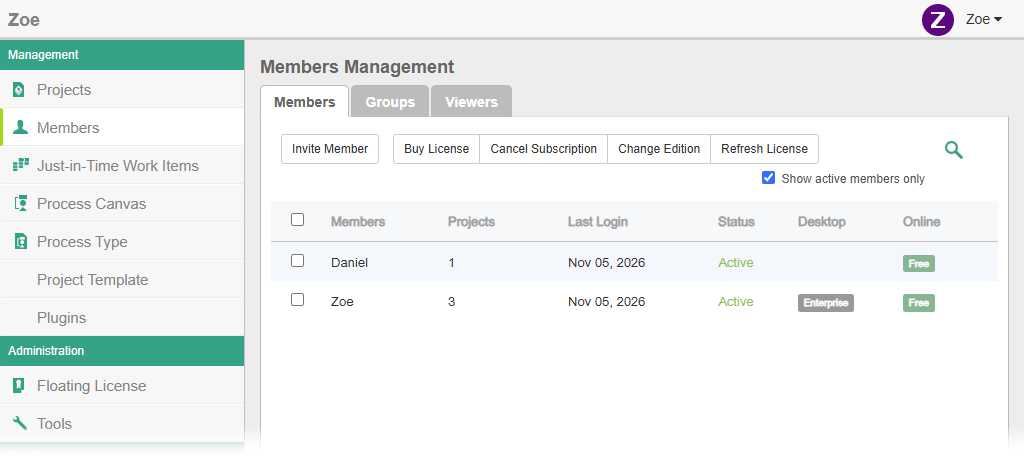
Step 2: Update Permissions Based on Your Role
Depending on whether you are a workspace manager or a standard member, follow the appropriate section below:
Scenario A: You Are the Workspace Manager
- Locate your name (or the target member’s name) in the user list and hover over it.
- Click the Edit button that appears to open the Permissions page.
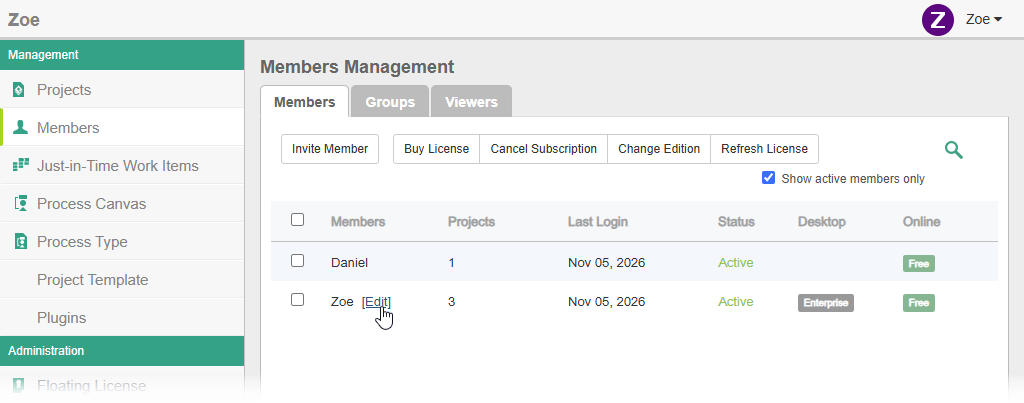
- Review the permissions, which are neatly grouped by application.
- Locate the target permission. The first column shows the permission title, followed by Allow and Deny checkboxes.
- Check the Allow box for the feature you want to access.
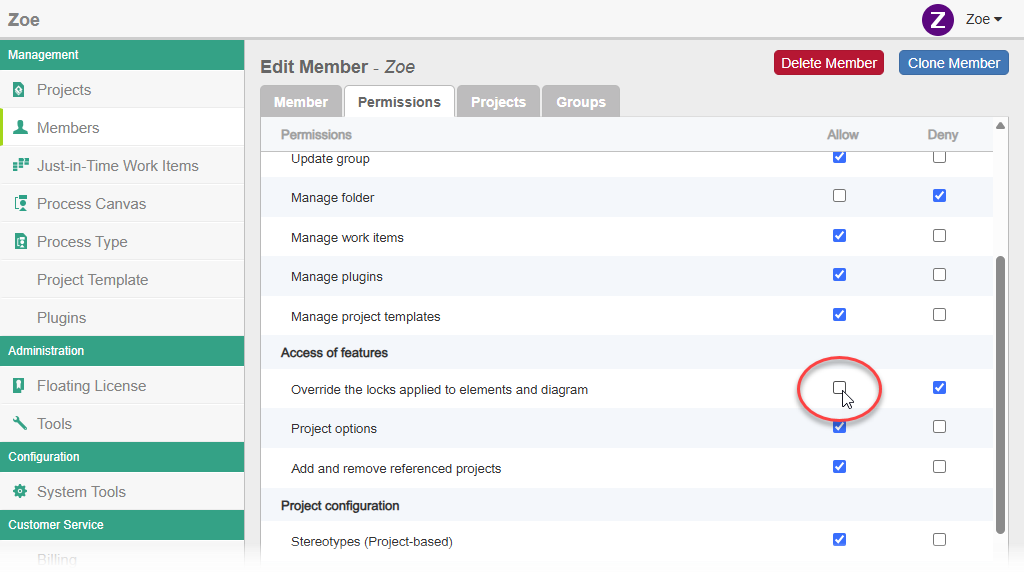
- Click Save at the top right corner of the page to apply the changes. You can now access the feature.
Scenario B: You Are Not a Manager (No Edit Button)
If you do not see the Edit button, it means you lack administrative privileges to edit workspace members.
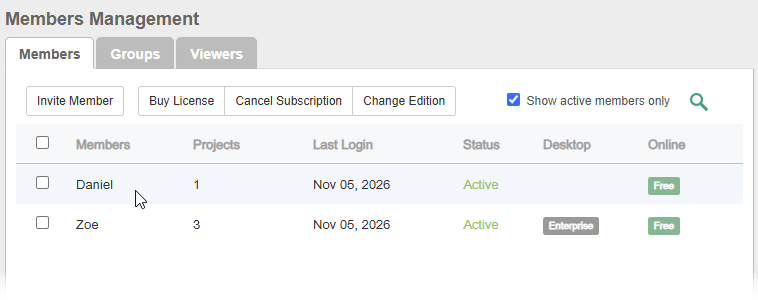
You have two options to resolve this:
- Option 1: Ask your manager directly. Request that the workspace manager follow the steps in Scenario A to update your specific permissions for you.
- Option 2: Request permission to edit members. Ask your manager to grant you self-management rights so you can modify permissions independently:
- Have the manager edit your member account in the Admin panel (using the steps in Scenario A).
- Navigate to your Permissions page.
- Under the Repository group, check Allow for the “Update member” permission.
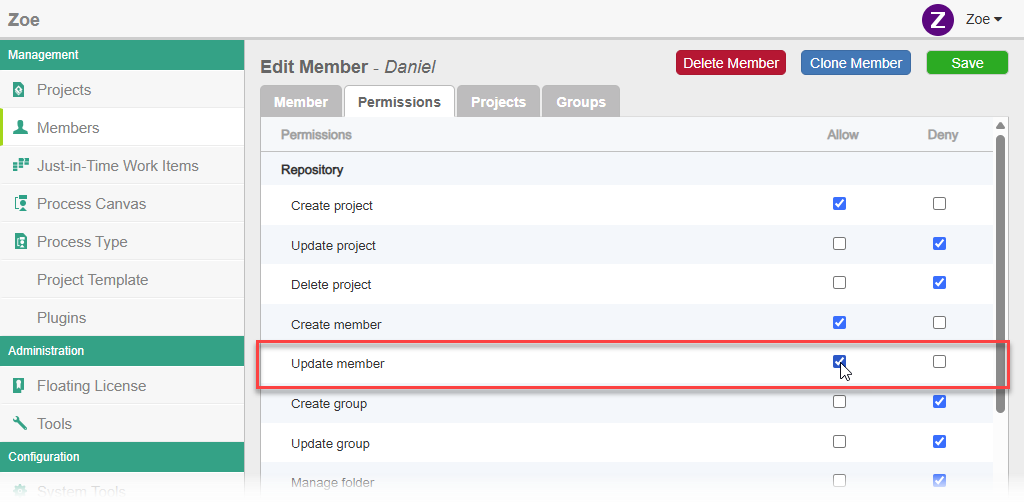
- Save the changes. You will now have the ability to edit member permissions and can freely manage your own access moving forward.
Summary
Managing access in Visual Paradigm ensures that team members have the right tools for their tasks while maintaining workspace security. Whether updating settings directly as a manager or delegating repository update rights, configuring permissions takes only a few simple steps.