Debugging text-based diagrams can be a frustrating roadblock for engineering teams. When you are building technical documentation or designing software systems, a single missing bracket, misspelled keyword, or malformed connector in your PlantUML code can cause rendering failures. Rather than wrestling with obscure error lines, developers and technical writers can leverage a feature-rich browser-based PlantUML editor with automated 1-Click AI Code Error Fixing to keep projects moving forward smoothly. Using a modern text to diagram tool in an online PlantUML editor eliminates visual alignment hassles, but syntax mistakes can still slow down your progress.
In this guide, we will look at the most common PlantUML syntax mistakes, why manual debugging drains productive engineering time, and how an all-in-one diagram-as-code tool powered by AI fixes broken code instantly. Choosing the right text to diagram tool inside a dedicated PlantUML editor ensures your documentation stays up-to-date with minimal effort.
Common Syntax Errors in PlantUML
Because PlantUML uses a concise domain-specific language, small typos can easily break the parser. When you work with a text to diagram tool or test scripts inside a PlantUML editor, understanding these syntax rules helps you write cleaner definitions from the start. Here are three frequent errors that interrupt developer workflows:
1. Unmatched or Misplaced Brackets
When defining components, packages, or grouping blocks, forgetting a closing curly brace or placing a bracket in the wrong scope prevents the layout engine from compiling the image in your PlantUML editor.
Broken Code Example:
@startuml
package "Authentication Service {
  [Login Controller] --> [Token Manager]
  [Token Manager] --> [User DB]
' Missing closing brace causes parser crash
@enduml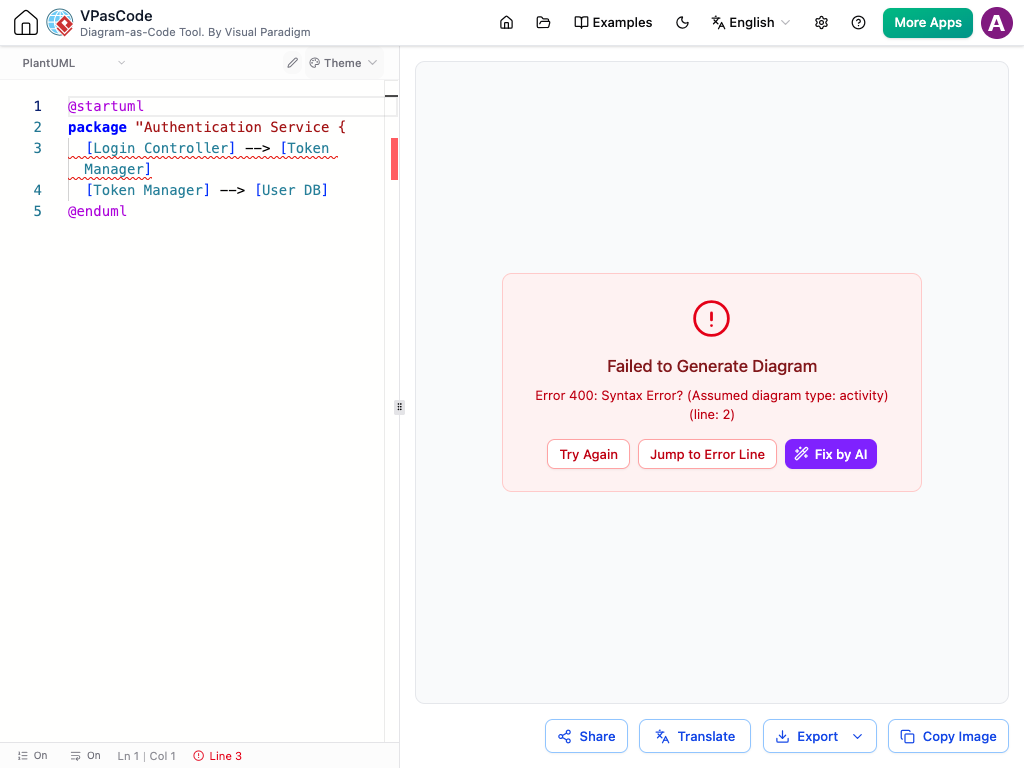
2. Invalid Connector Directions and Syntax
Connecting entities requiring specific arrow styles—such as --> for basic arrows or specialized relations in Sequence Diagrams—often leads to syntax errors if a character is misplaced or an unsupported arrow syntax is used.
3. Typos in Keywords and Diagram Headers
PlantUML scripts rely on clear start and end directives like @startuml and @enduml. Omitting these wrappers, or misspelling stereotype tags, leaves the parser unable to determine the diagram type.
The Hidden Cost of Manual Debugging
When technical teams rely on traditional code editors without integrated AI assistance, fixing broken diagrams in a basic PlantUML editor usually means:
- Reading through dense parser logs to find line numbers.
- Fiddling with indentation and brackets by trial and error.
- Context-switching away from core programming or documentation tasks.
For complex architecture charts or extensive data flows, finding a misplaced character manually can take up valuable minutes that quickly add up across a sprint. A reliable text to diagram tool and smart PlantUML editor should assist developers in resolving these bottlenecks quickly.
How 1-Click AI Code Error Fixing Works in VPasCode
VPasCode integrates intelligent parsing to eliminate syntax frustration completely. As an advanced text to diagram tool and web-based PlantUML editor, when a script fails to render, the built-in AI engine analyzes the surrounding code structure, identifies the exact syntax conflict, and suggests or applies the correction in one click.
Corrected Code Example (Try it Now):
@startuml
package "Authentication Service" {
  [Login Controller] --> [Token Manager]
  [Token Manager] --> [User DB]
}
@enduml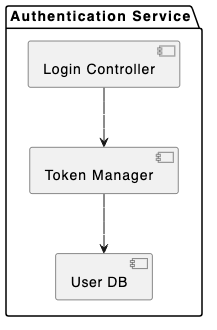
Step-by-Step AI Correction Workflow
- Paste or Write Code: Input your PlantUML script directly into the online PlantUML editor workspace.
- Trigger AI Fix: If a rendering error occurs, select the 1-Click AI Fix option right inside the editor canvas.
- Review and Render: The AI analyzes the broken syntax, rewrites the problematic lines automatically, and updates the preview without losing your existing layout structure.
Streamlining Team Workflows and Exports
Fixing code errors automatically is only part of maintaining productive documentation. Once your diagram renders successfully inside the PlantUML editor, you can easily export high-resolution SVG or PNG assets for reports, or publish interactive documentation directly using Visual Paradigm OpenDocs integration.
Whether you are creating software C4 models, mapping out database ERDs, or visualizing complex system flows, AI-driven error fixing in our browser PlantUML editor keeps your focus on software design rather than syntax troubleshooting.
Transform Your Diagramming Workflow Today
Ready to eliminate syntax frustrations and create beautiful, production-ready diagrams from text in seconds? Try VPasCode’s AI-powered PlantUML editor today and experience instant AI code error fixing, multi-format rendering, and seamless documentation workflows.