VPasCode is a browser-based diagram-as-code workspace that combines a text editor, live diagram rendering, PlantUML support, and AI-assisted diagram generation and editing. Instead of manually dragging shapes onto a canvas, you describe a diagram using PlantUML code—or ask AI to create the first version—and then refine the source text until the rendered diagram communicates your design clearly.
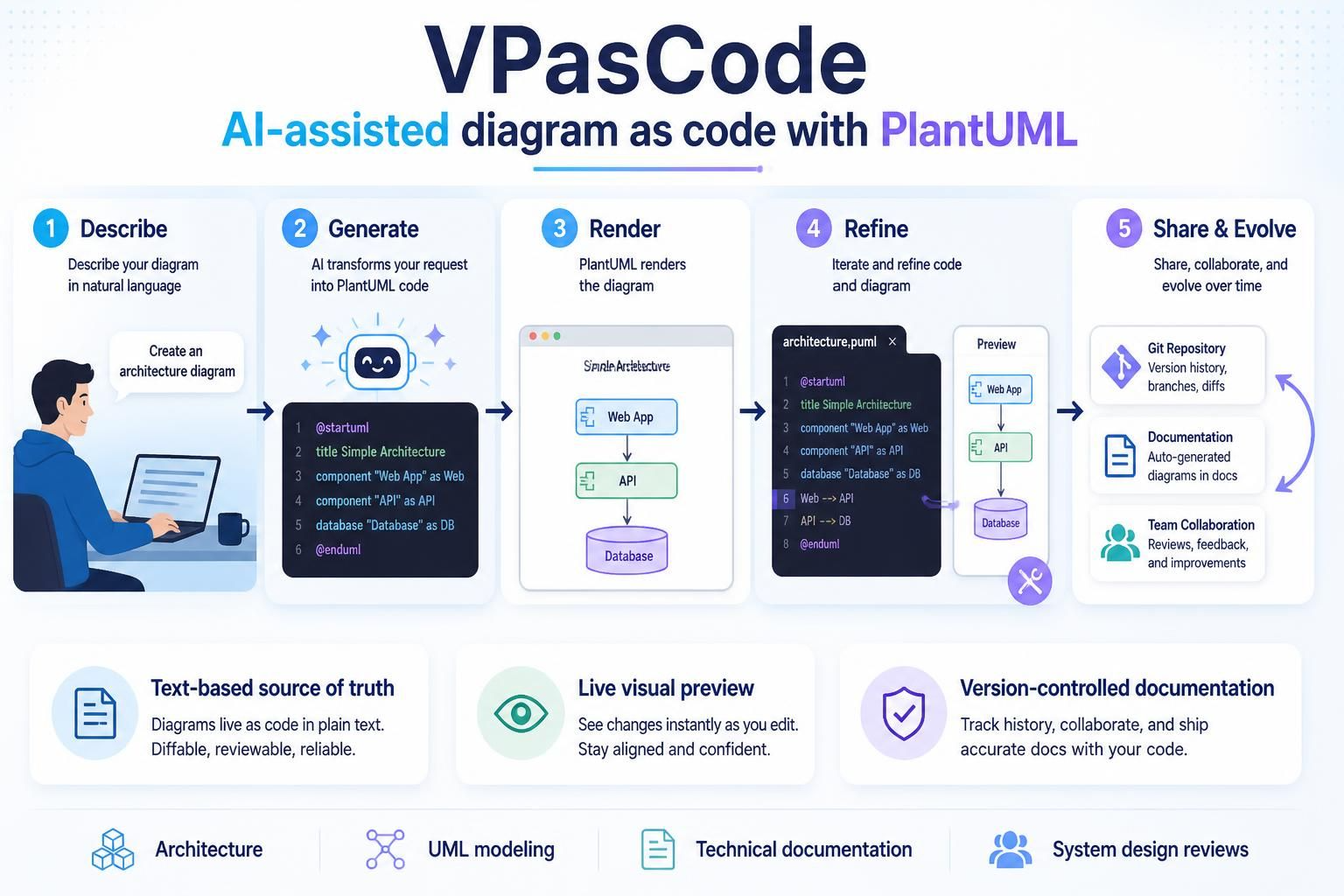
This workflow is particularly useful for software architecture, UML modeling, technical documentation, system design reviews, and diagrams that need to evolve alongside source code.
1. What is diagram-as-code?
Diagram-as-code represents a diagram as text rather than as a static drawing file. The text acts as the source of truth, while a rendering engine converts it into a visual diagram.
A simple PlantUML sequence diagram looks like this:
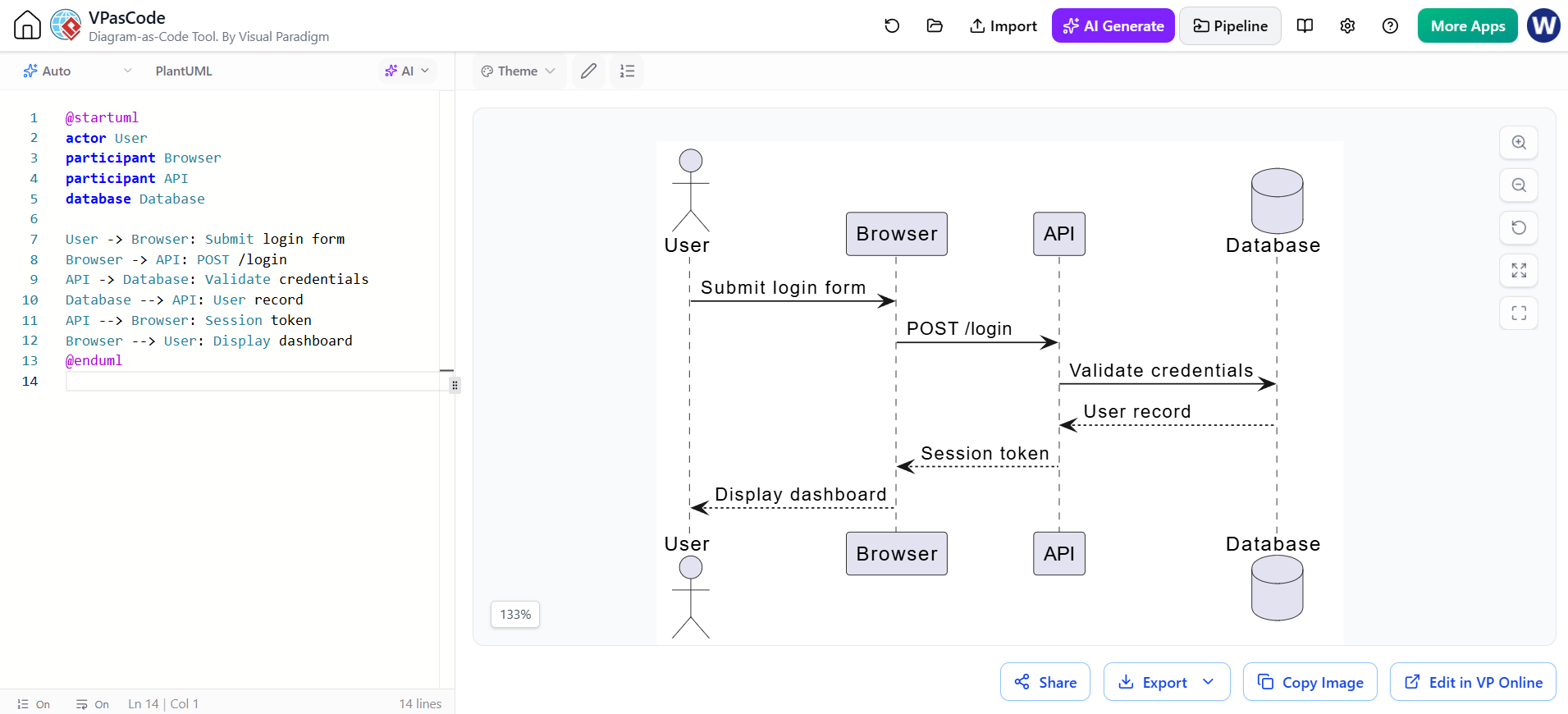
@startuml
actor User
participant Browser
participant API
database Database

User -> Browser: Submit login form
Browser -> API: POST /login
API -> Database: Validate credentials
Database --> API: User record
API --> Browser: Session token
Browser --> User: Display dashboard
@enduml
The code can be:
-
Stored in Git
-
Reviewed in pull requests
-
Updated with ordinary text-editing tools
-
Reused as a template
-
Rendered into SVG, PNG, or PDF
-
Embedded in technical documentation
-
Modified by AI while retaining human review
Traditional diagrams often become outdated because updating a visual canvas takes time. With diagram-as-code, adding a service, changing a relationship, or renaming a component can be handled as a text change. This reduces maintenance effort, although the diagram still needs to be reviewed for accuracy.
2. What VPasCode provides
VPasCode brings multiple diagram languages and visualization formats into one browser-based workspace. Its documented capabilities include PlantUML, Mermaid, D2, Graphviz, Markmap, data formats, and other text-based inputs. It also provides automatic format detection, so pasted diagram code can be recognized and rendered without manually selecting the language.
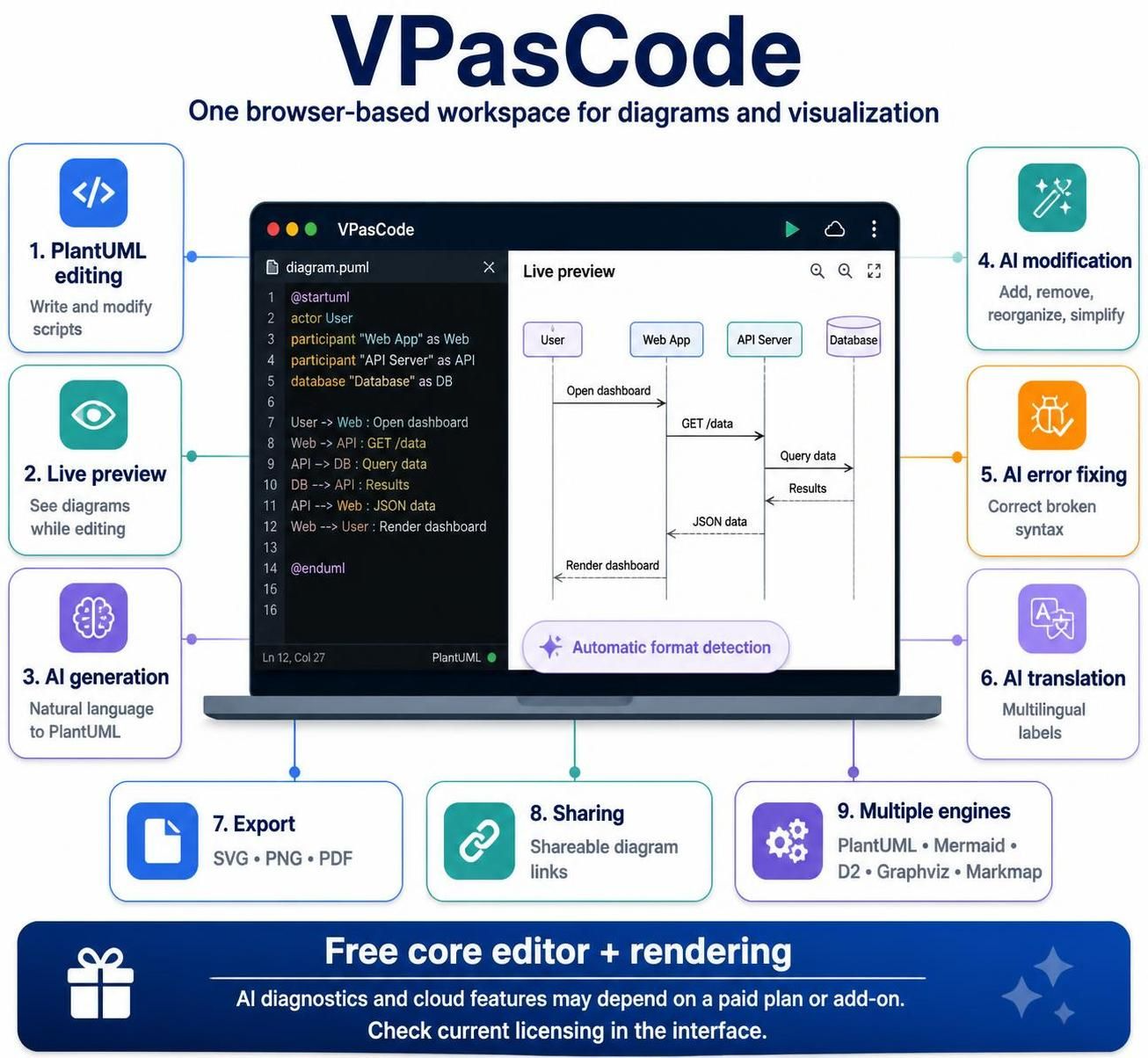
The main capabilities relevant to PlantUML users are:
-
PlantUML editing: Write and modify PlantUML scripts in a code editor.
-
Live preview: See the rendered diagram while editing.
-
AI generation: Describe a diagram in natural language and generate PlantUML code.
-
AI modification: Ask AI to add, remove, reorganize, or simplify parts of an existing diagram.
-
AI error fixing: Request help correcting invalid or broken syntax.
-
AI translation: Translate diagram labels for multilingual teams.
-
Export: Download diagrams in formats such as SVG, PNG, and PDF.
-
Sharing: Create shareable links for diagrams.
-
Multiple diagram engines: Switch between PlantUML and other diagram-as-code standards when appropriate.
The core editor and rendering features are described as free, while some AI diagnostics and cloud-related capabilities may depend on a paid Visual Paradigm plan or add-on. Current licensing should be checked in the VPasCode interface because plan details can change.
3. Why use PlantUML in VPasCode?
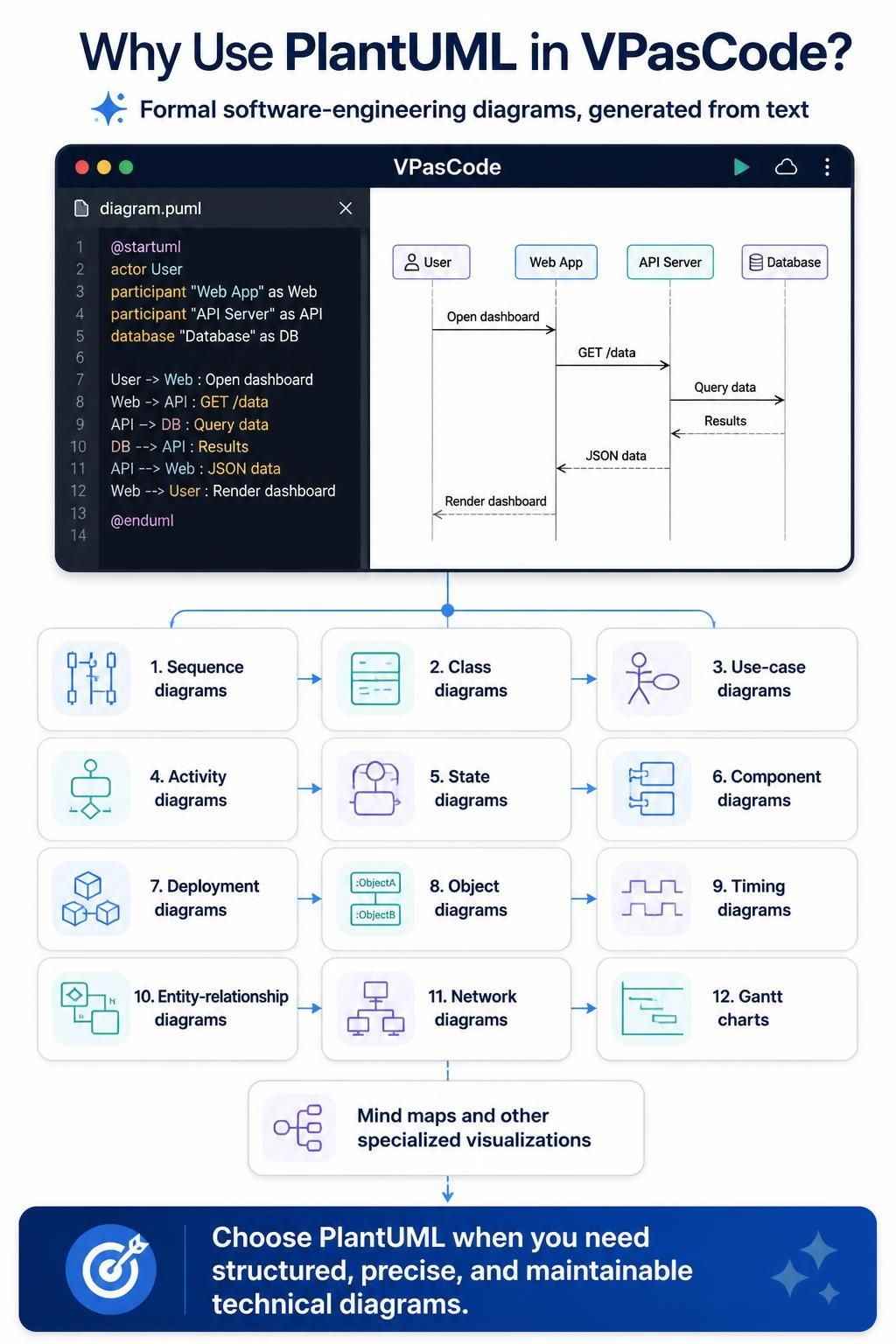
PlantUML is a strong choice when you need formal software-engineering diagrams. It supports many diagram types, including:
-
Sequence diagrams
-
Class diagrams
-
Use-case diagrams
-
Activity diagrams
-
State diagrams
-
Component diagrams
-
Deployment diagrams
-
Object diagrams
-
Timing diagrams
-
Entity-relationship diagrams
-
Network diagrams
-
Gantt charts
-
Mind maps and other specialized visualizations
PlantUML is especially useful when the diagram must express relationships, interactions, dependencies, or architecture rather than simply illustrate a process.
A practical division of responsibilities is:
| Requirement | Good choice |
|---|---|
| UML-heavy software modeling | PlantUML |
| Lightweight diagrams in Markdown | Mermaid |
| Graph-oriented dependency visualization | Graphviz |
| Concise architecture diagrams with alternative layout engines | D2 |
| Markdown-based mind maps | Markmap |
VPasCode is useful when a team works with more than one of these formats and wants a shared editing and preview environment.
4. Getting started with VPasCode
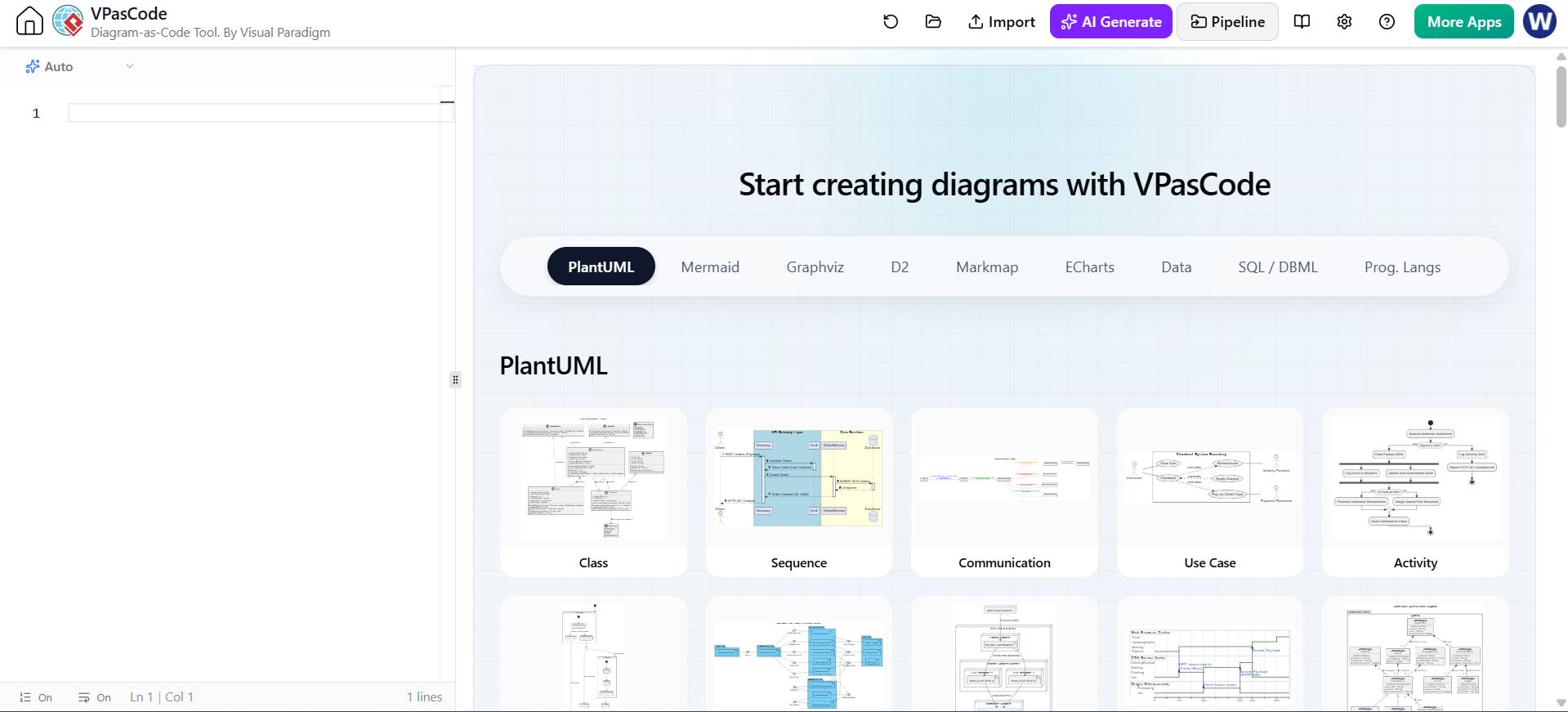
Because VPasCode operates in the browser, there is generally no local installation or diagram-rendering setup required. Open the VPasCode editor, create or paste a diagram script, and use the live preview to inspect the result.
A basic workflow is:
-
Open the VPasCode editor.
-
Create a new diagram or paste existing PlantUML code.
-
Allow the editor to detect the PlantUML format, or choose PlantUML explicitly if necessary.
-
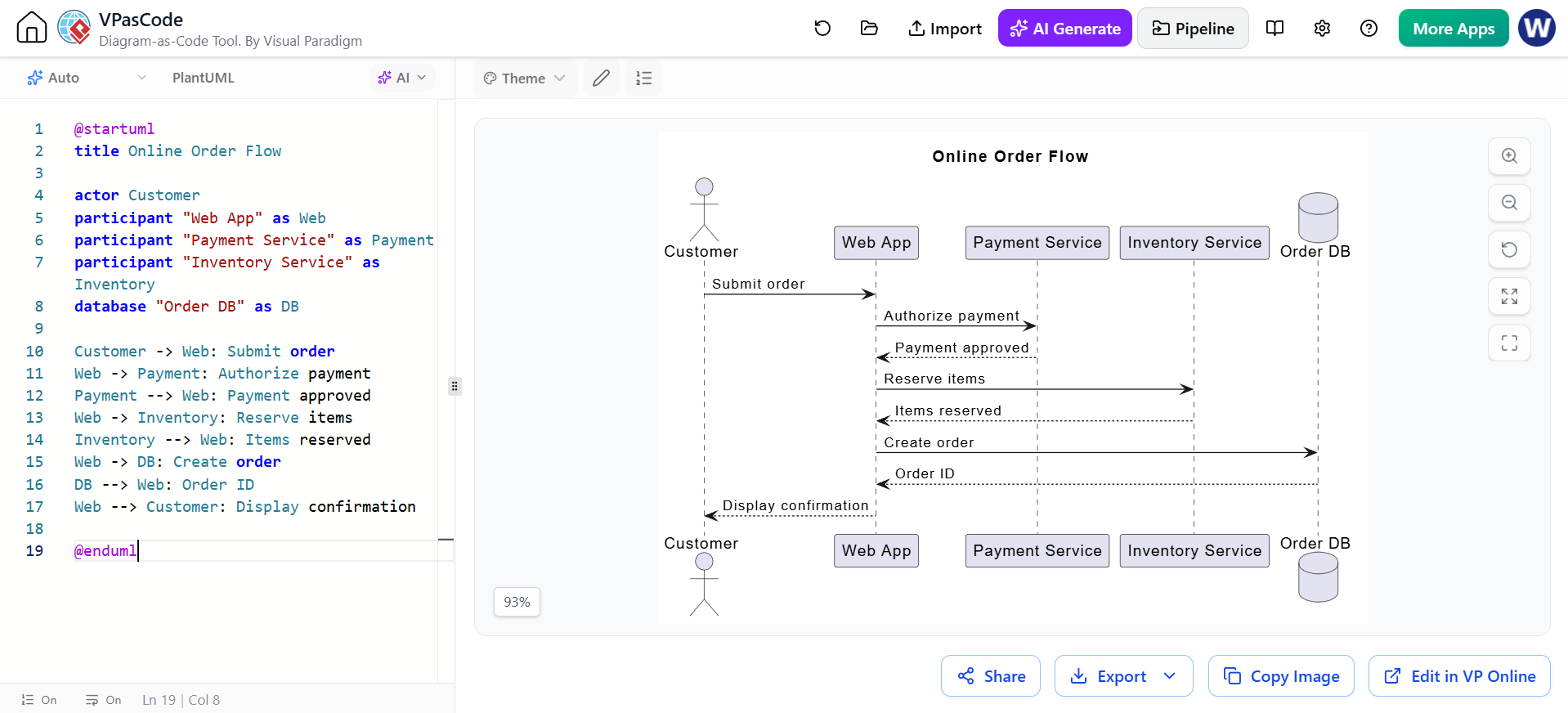
Review the live-rendered preview.
-
Correct syntax or layout issues.
-
Use AI to generate or modify code when helpful.
-
Export or share the completed diagram.
-
Save the PlantUML source in your project repository if the diagram is part of ongoing documentation.
The most important habit is to preserve the source code. The exported image is an output; the PlantUML script is the maintainable artifact.
5. Creating a PlantUML diagram manually
Start with the standard PlantUML boundaries:
@startuml
' Diagram content goes here
@enduml
Comments begin with a single apostrophe:
@startuml
' This is a comment
Alice -> Bob: Hello
@enduml
A minimal sequence diagram:
@startuml
Alice -> Bob: Request
Bob --> Alice: Response
@enduml
The arrow determines the direction and visual style of the interaction. Common examples include:
A -> B: Synchronous request
A --> B: Dashed response
A ->> B: Asynchronous message
A <-- B: Reverse-direction message
A -[#red]> B: Colored relationship
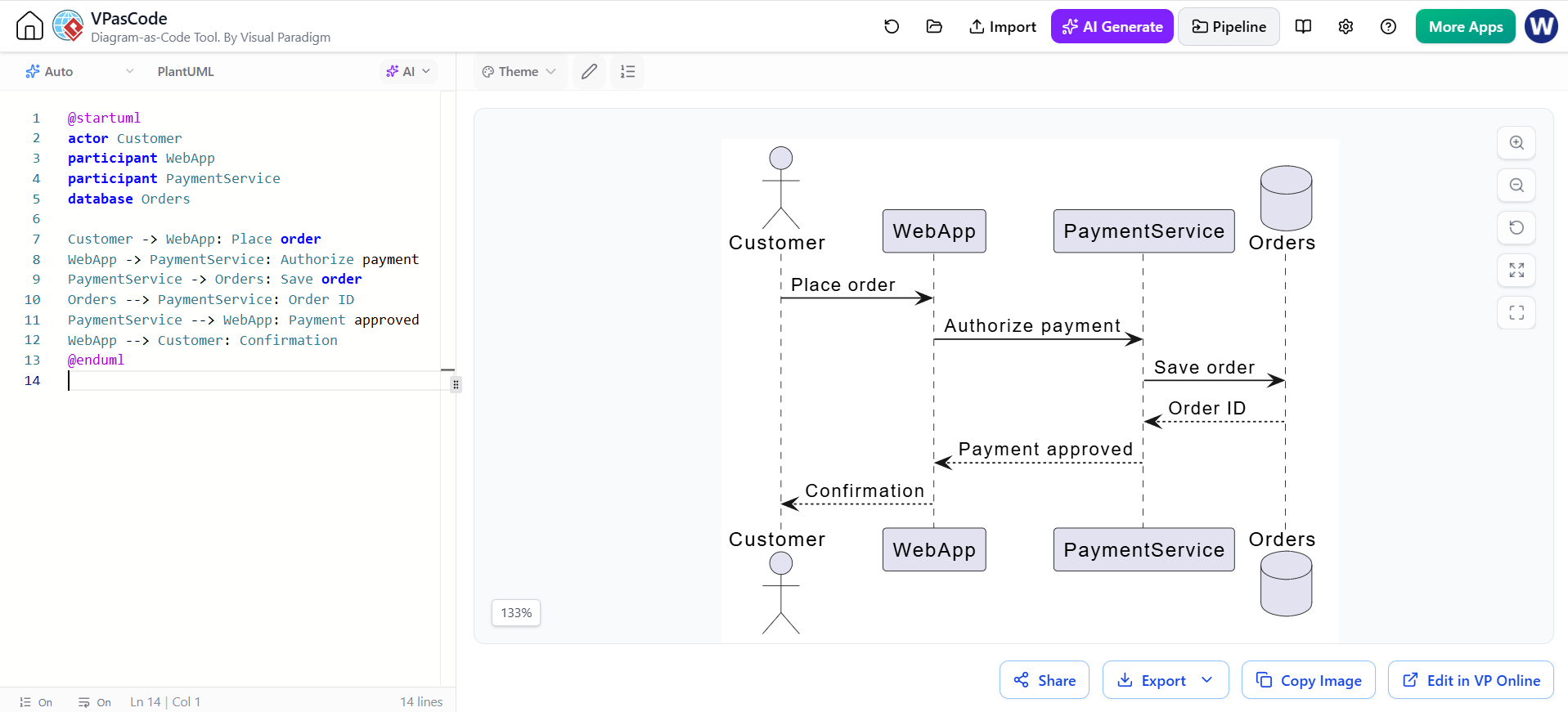
Participants can be declared explicitly:
@startuml
actor Customer
participant WebApp
participant PaymentService
database Orders

Customer -> WebApp: Place order
WebApp -> PaymentService: Authorize payment
PaymentService -> Orders: Save order
Orders --> PaymentService: Order ID
PaymentService --> WebApp: Payment approved
WebApp --> Customer: Confirmation
@enduml
Explicit declarations improve readability and make it easier to control aliases, types, and visual appearance.
6. Asking AI to generate PlantUML
The quality of an AI-generated diagram depends heavily on the prompt. A vague request such as “Create an architecture diagram” may produce an attractive but incomplete result. A good prompt specifies:
-
The diagram type
-
The system boundary
-
The actors or components
-
The important relationships
-
The direction of communication
-
The level of detail
-
Any constraints on notation
-
The desired output format
For example:
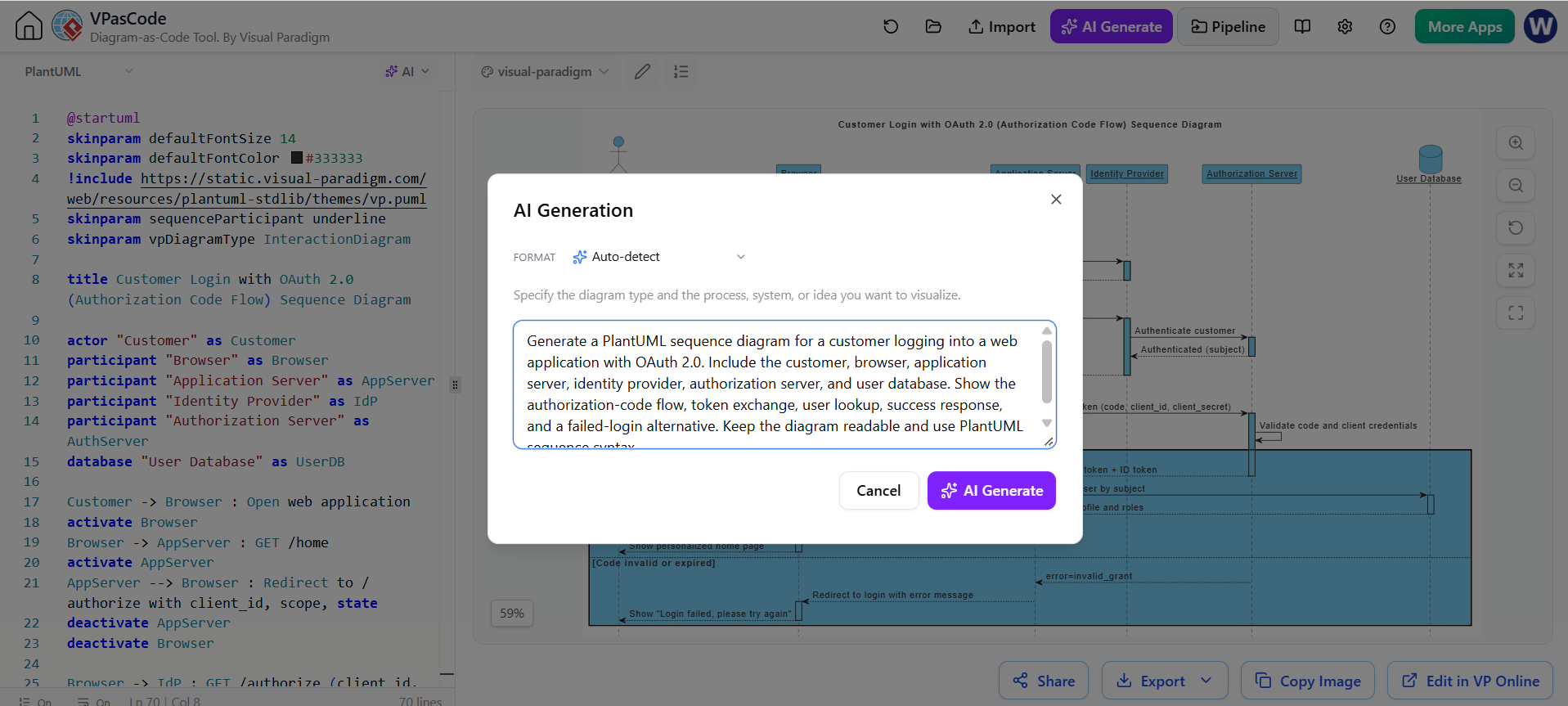
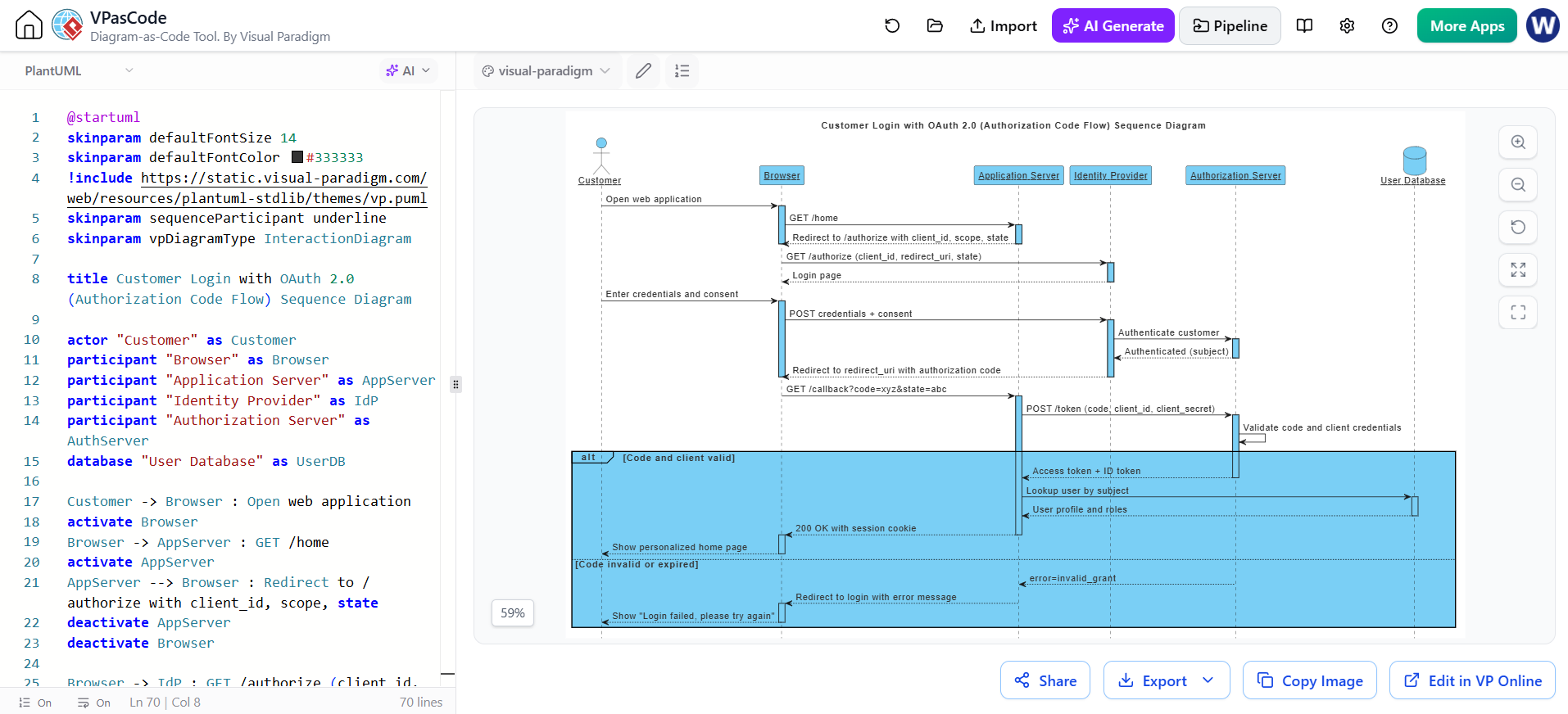
Generate a PlantUML sequence diagram for a customer logging into a web application with OAuth 2.0. Include the customer, browser, application server, identity provider, authorization server, and user database. Show the authorization-code flow, token exchange, user lookup, success response, and a failed-login alternative. Keep the diagram readable and use PlantUML sequence syntax.
A useful architecture prompt might be:
Create a PlantUML component diagram for an online store. Include:
- Web browser
- CDN
- Web frontend
- API gateway
- Product service
- Order service
- Payment provider
- PostgreSQL database
- Redis cache
- Message broker

Group components by Web, Application, External Systems, and Data. Show the main request path for browsing products and placing an order. Do not include infrastructure details that are not relevant to the business flow.
VPasCode’s AI features are designed to generate diagram code from natural-language descriptions and render the result in the selected format. The generated code should be treated as a first draft: inspect the relationships, assumptions, labels, and omissions before using it as documentation.
7. Example: AI-generated sequence diagram
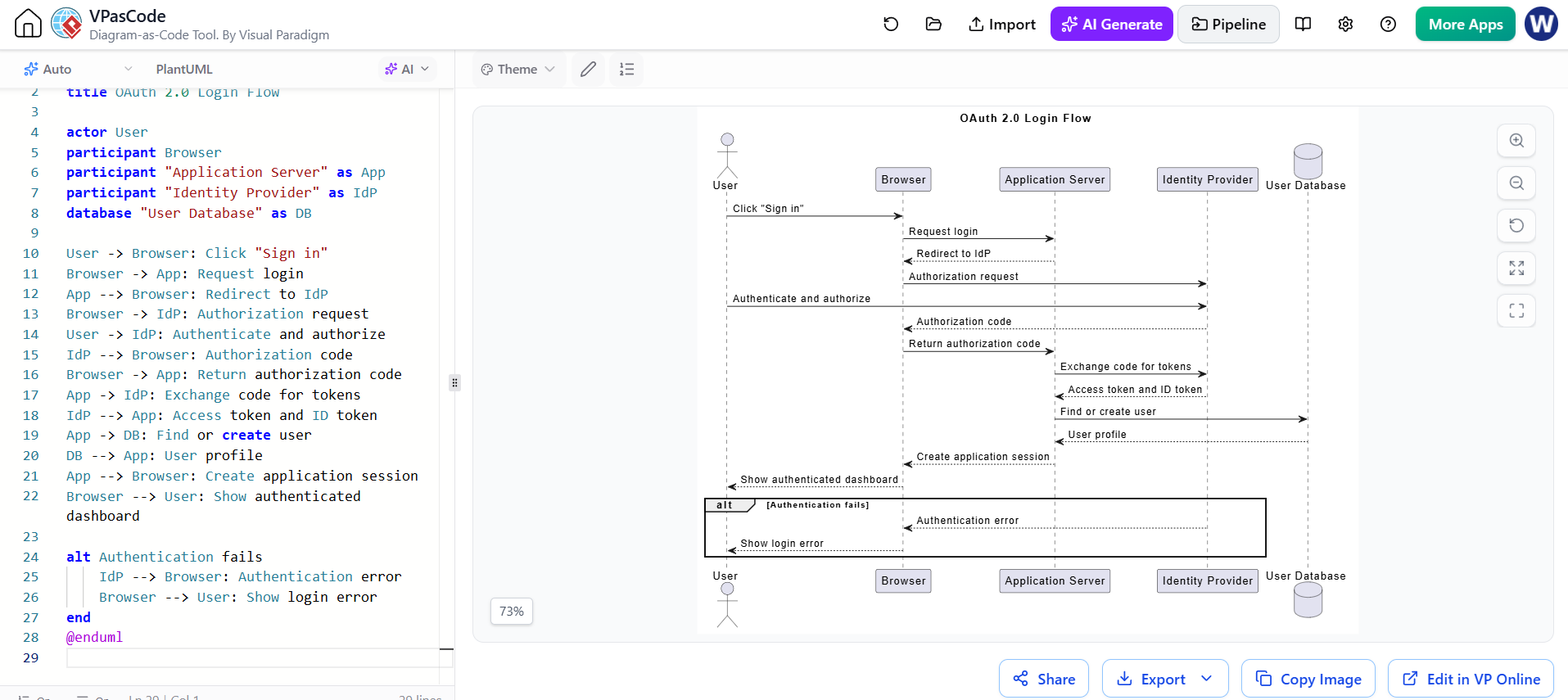
A refined result for the OAuth login prompt could look like this:
@startuml
title OAuth 2.0 Login Flow

actor User
participant Browser
participant "Application Server" as App
participant "Identity Provider" as IdP
database "User Database" as DB

User -> Browser: Click "Sign in"
Browser -> App: Request login
App --> Browser: Redirect to IdP
Browser -> IdP: Authorization request
User -> IdP: Authenticate and authorize
IdP --> Browser: Authorization code
Browser -> App: Return authorization code
App -> IdP: Exchange code for tokens
IdP --> App: Access token and ID token
App -> DB: Find or create user
DB --> App: User profile
App --> Browser: Create application session
Browser --> User: Show authenticated dashboard

alt Authentication fails
    IdP --> Browser: Authentication error
    Browser --> User: Show login error
end
@enduml
The AI may produce a technically valid diagram that still misrepresents the actual implementation. For example, it might show the browser communicating directly with a database or omit token validation. Validate the result against the real system.
8. Editing an existing diagram with AI
AI is often more useful for controlled modifications than for generating an entire diagram from scratch.
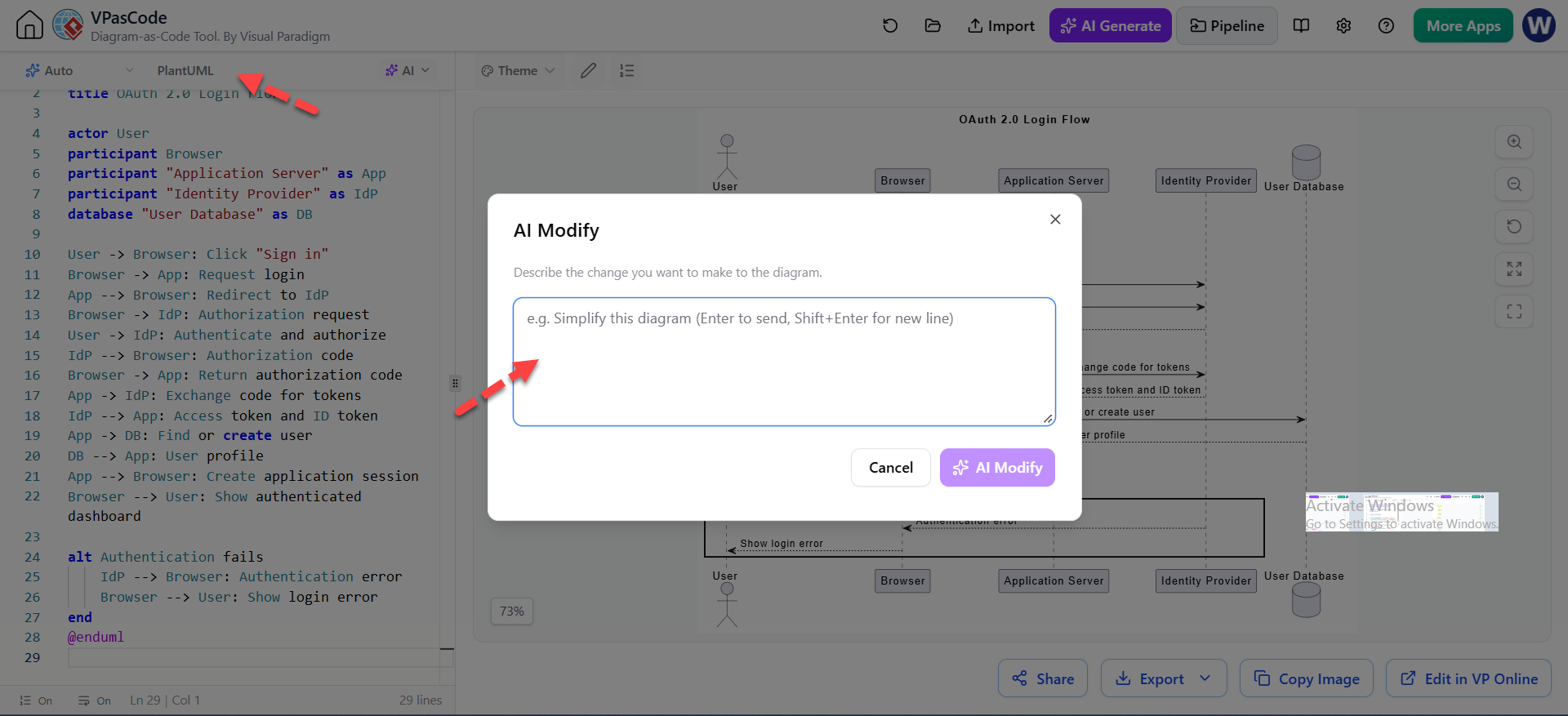
Examples of targeted instructions include:
Add a Redis cache between the API gateway and Product Service. Show a cache hit and cache miss path.
Group all database components into a Data Layer package.
Remove implementation details and leave only the major business services.
Add an alternative path for payment failure and order cancellation.
Rename "Auth Service" to "Identity Service" everywhere without changing other relationships.
Convert this sequence diagram into a component diagram that shows responsibilities rather than message-by-message interactions.
VPasCode describes AI-assisted diagram modification as a way to update existing scripts using plain-language commands. Some workflows may also provide a visual or line-level comparison before accepting changes.
A safe modification workflow is:
-
Keep the original source unchanged.
-
Ask AI for one focused modification.
-
Inspect the proposed code changes.
-
Render the result.
-
Check that unrelated relationships were not altered.
-
Accept the change only after visual and semantic review.
-
Commit the updated source with a meaningful message.
9. Using AI to fix PlantUML errors
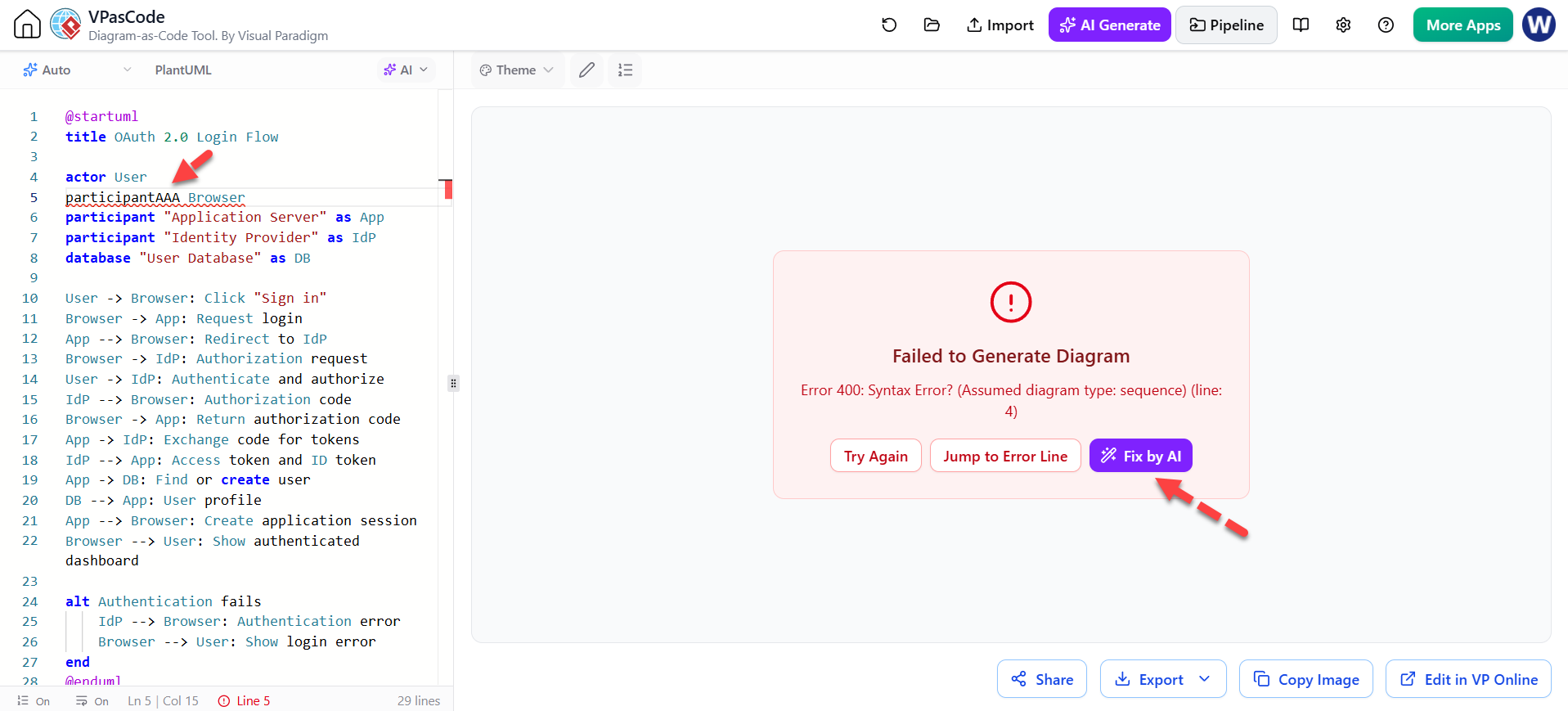
PlantUML errors commonly result from:
-
Missing
@enduml -
Misspelled keywords
-
Invalid participant declarations
-
Unbalanced grouping blocks
-
Incorrect brackets or parentheses
-
Unsupported syntax copied from another diagram language
-
Incorrectly escaped special characters
-
Mixing Mermaid, PlantUML, and Graphviz syntax
For example, this script contains a malformed declaration:
@startuml
participant Browser
particpant API
Browser -> API: Request
@enduml
The correction is:
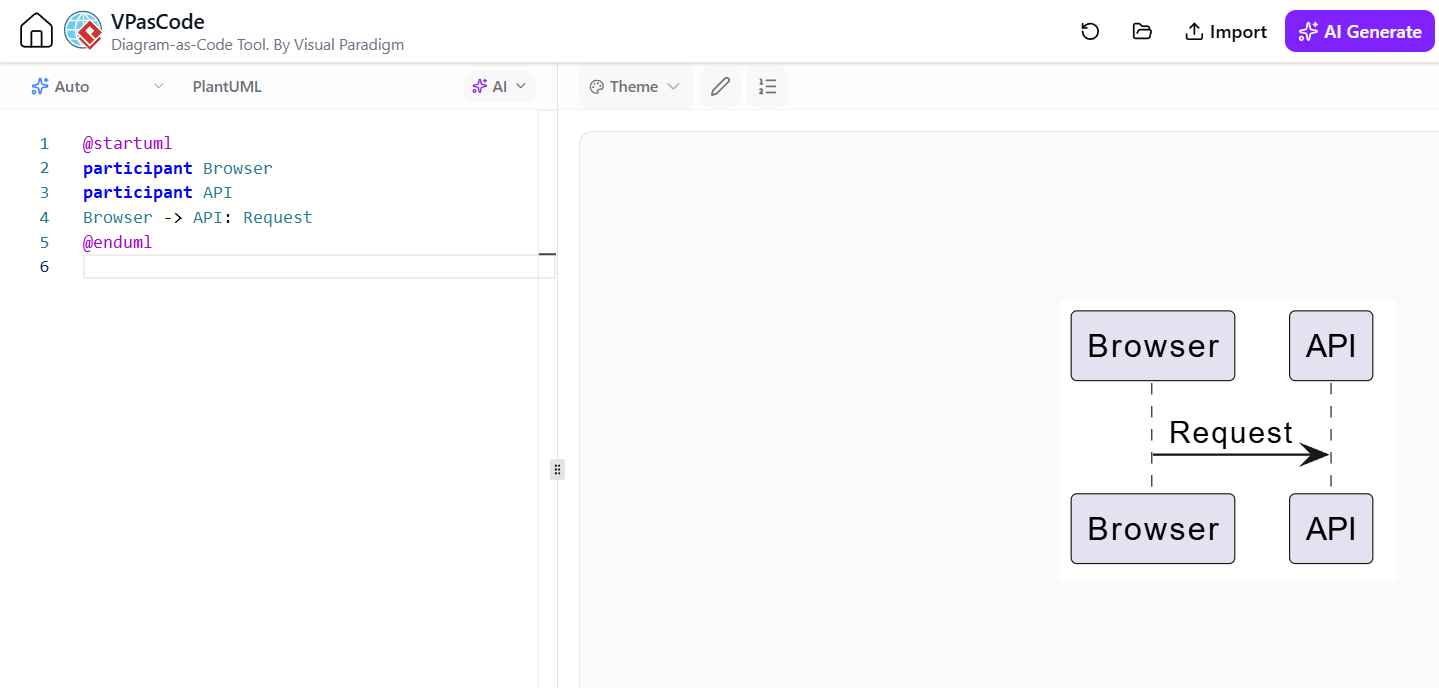
@startuml
participant Browser
participant API
Browser -> API: Request
@enduml
When using an AI repair feature, provide the intended behavior as well as the broken code. This helps prevent a syntactic fix that changes the meaning of the diagram:
Fix the PlantUML syntax error, but preserve the participants, message order, and labels. Explain which line was invalid.
VPasCode documents AI-assisted syntax repair for malformed diagram scripts. Such repairs should still be reviewed, especially when the AI changes more than one line.
10. Core PlantUML patterns
10.1 Sequence diagrams
Sequence diagrams show interactions over time.
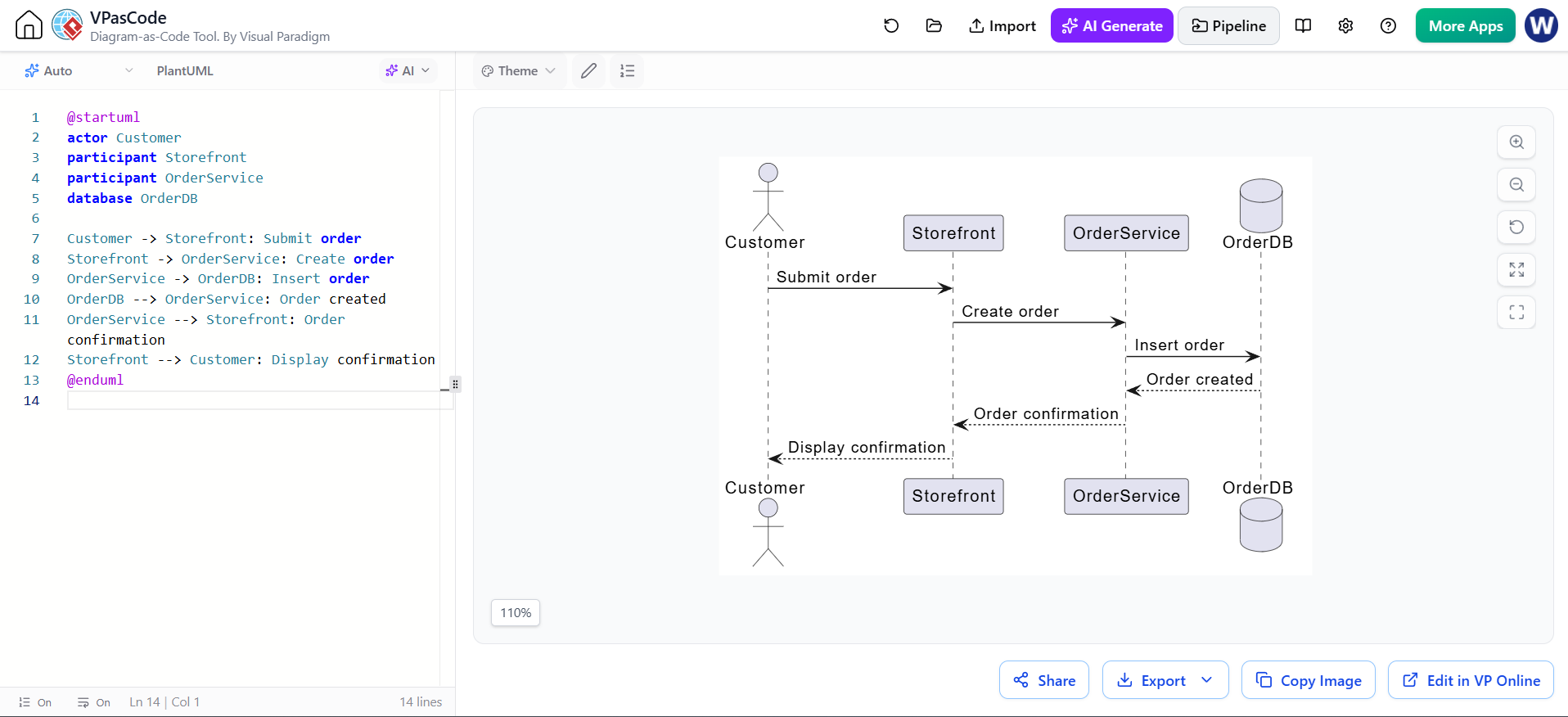
@startuml
actor Customer
participant Storefront
participant OrderService
database OrderDB

Customer -> Storefront: Submit order
Storefront -> OrderService: Create order
OrderService -> OrderDB: Insert order
OrderDB --> OrderService: Order created
OrderService --> Storefront: Order confirmation
Storefront --> Customer: Display confirmation
@enduml
Use alt, opt, loop, and par to show control flow:
@startuml
participant Client
participant API

Client -> API: Submit request

alt Request is valid
    API --> Client: 200 OK
else Request is invalid
    API --> Client: 400 Bad Request
end

loop Retry up to three times
    Client -> API: Retry request
end
@enduml
10.2 Class diagrams
Class diagrams express structure, attributes, methods, and relationships.
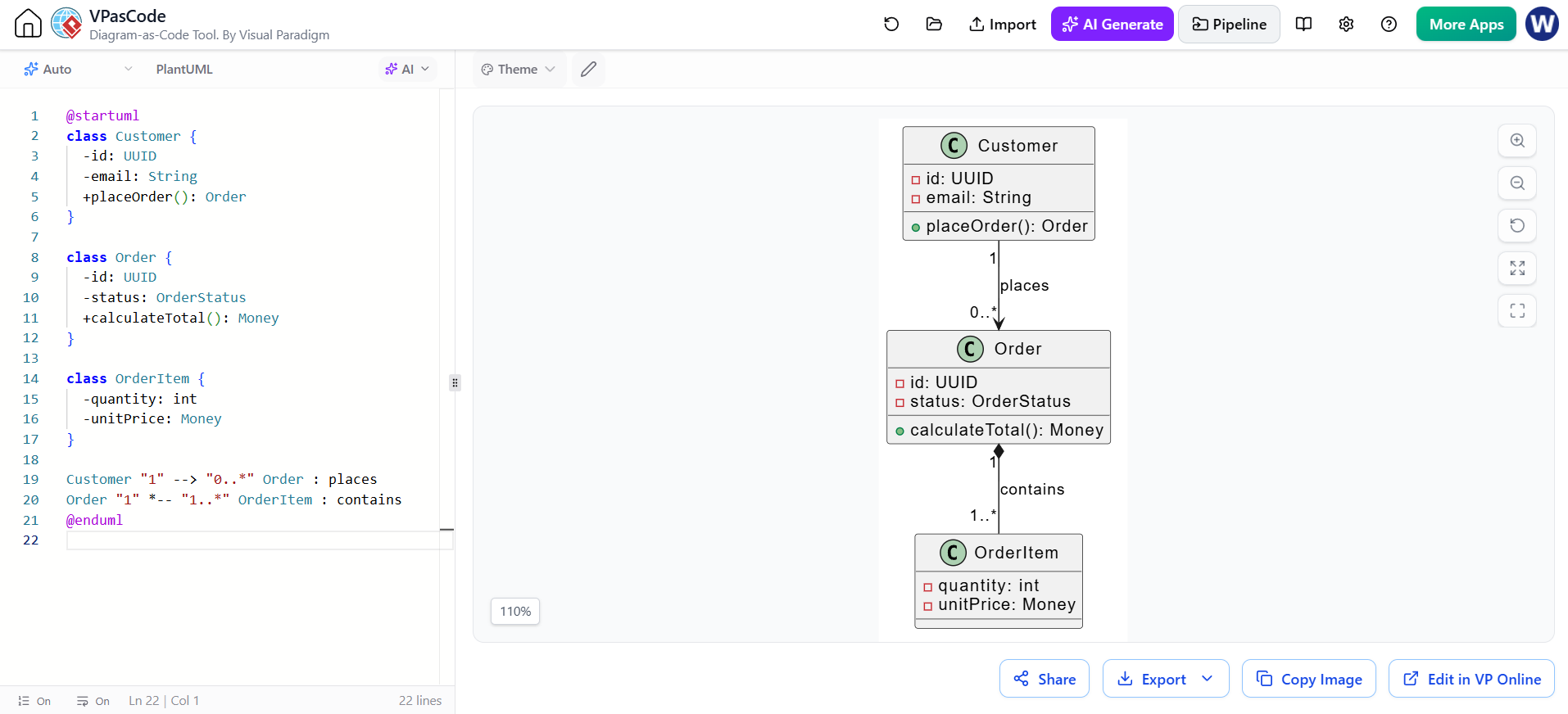
@startuml
class Customer {
  -id: UUID
  -email: String
  +placeOrder(): Order
}

class Order {
  -id: UUID
  -status: OrderStatus
  +calculateTotal(): Money
}

class OrderItem {
  -quantity: int
  -unitPrice: Money
}

Customer "1" --> "0..*" Order : places
Order "1" *-- "1..*" OrderItem : contains
@enduml
Common relationship symbols include:
A -- B       ' Association
A o-- B     ' Aggregation
A *-- B     ' Composition
A ..> B     ' Dependency
A --|> B    ' Inheritance
A ..|> B    ' Realization
10.3 Component diagrams
Component diagrams are effective for high-level software architecture.
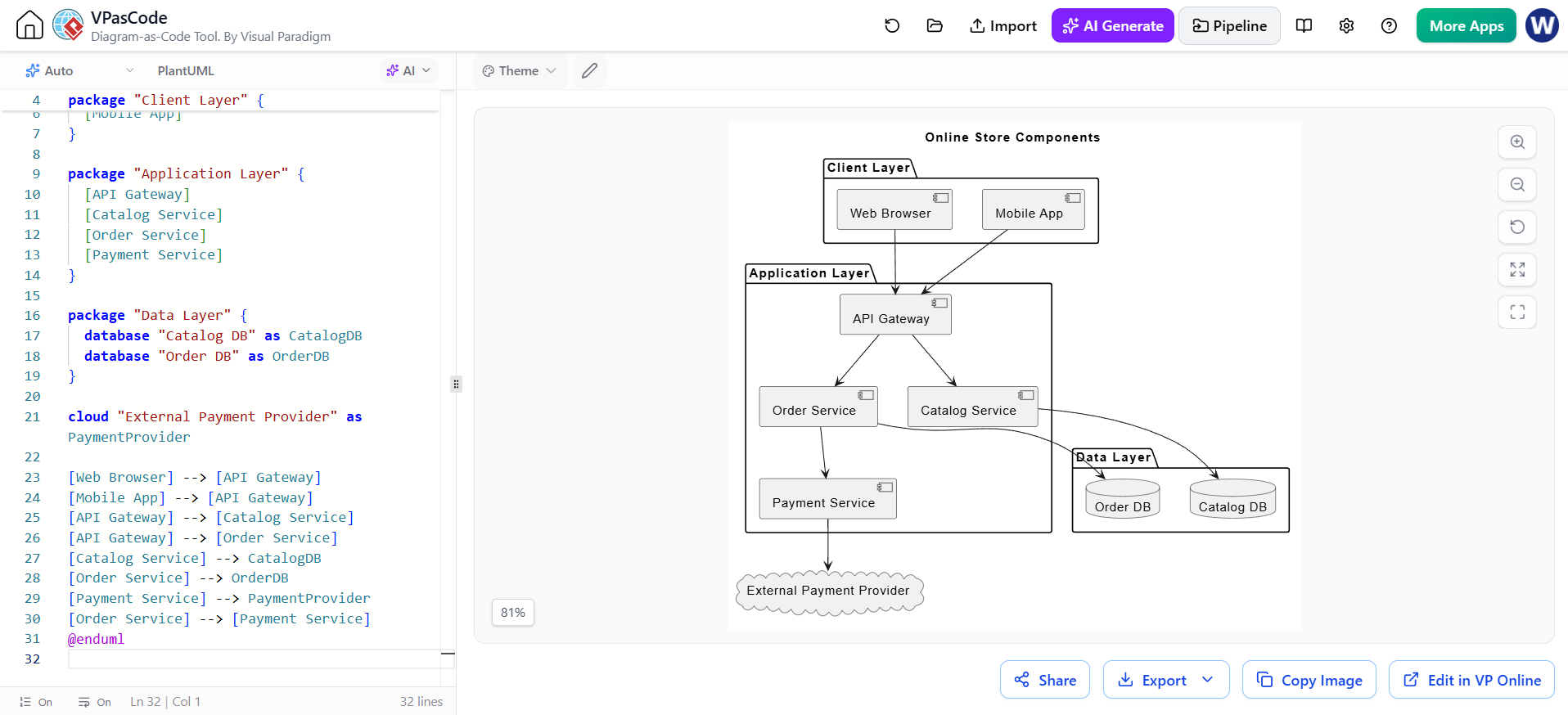
@startuml
title Online Store Components

package "Client Layer" {
  [Web Browser]
  [Mobile App]
}

package "Application Layer" {
  [API Gateway]
  [Catalog Service]
  [Order Service]
  [Payment Service]
}

package "Data Layer" {
  database "Catalog DB" as CatalogDB
  database "Order DB" as OrderDB
}

cloud "External Payment Provider" as PaymentProvider

[Web Browser] --> [API Gateway]
[Mobile App] --> [API Gateway]
[API Gateway] --> [Catalog Service]
[API Gateway] --> [Order Service]
[Catalog Service] --> CatalogDB
[Order Service] --> OrderDB
[Payment Service] --> PaymentProvider
[Order Service] --> [Payment Service]
@enduml
10.4 Activity diagrams
Activity diagrams show workflows and branching logic.
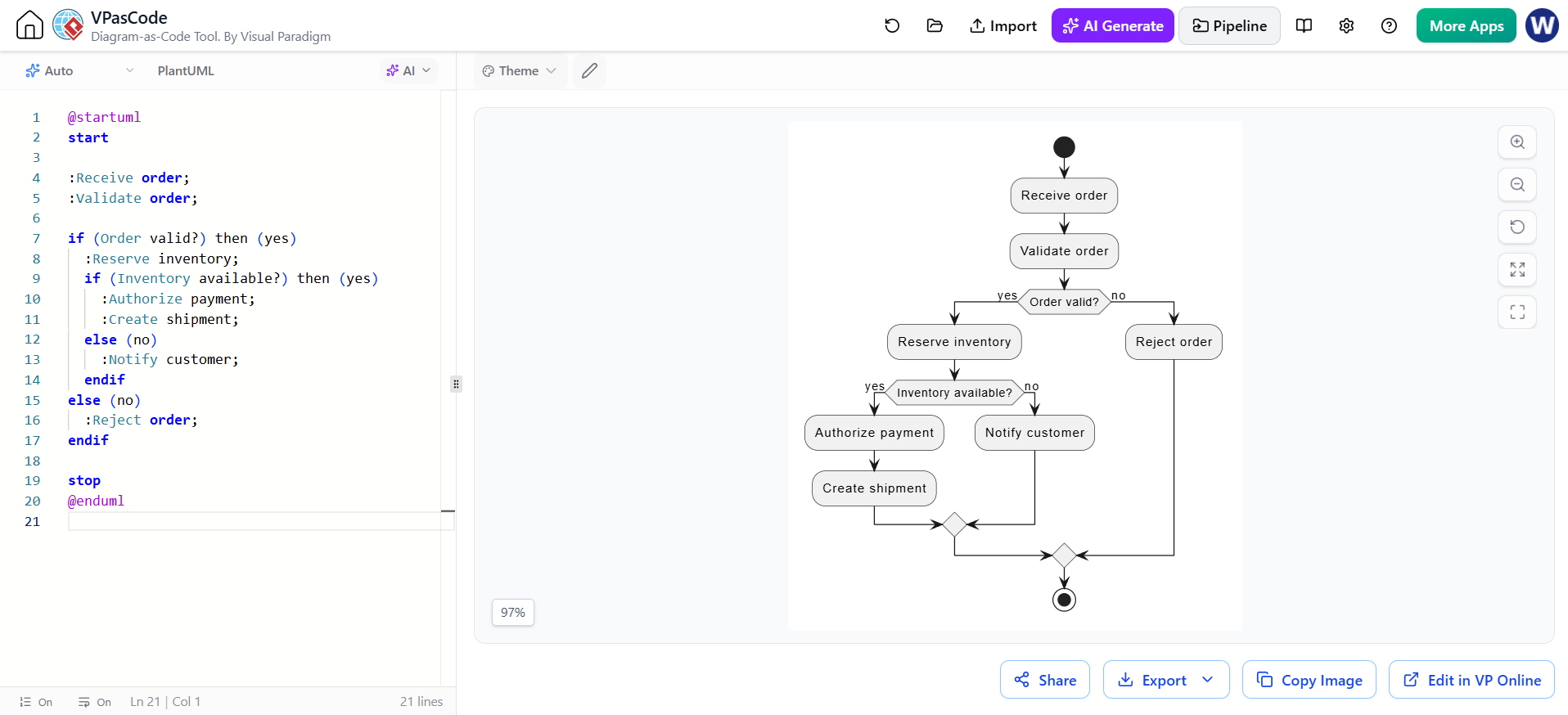
@startuml
start

:Receive order;
:Validate order;

if (Order valid?) then (yes)
  :Reserve inventory;
  if (Inventory available?) then (yes)
    :Authorize payment;
    :Create shipment;
  else (no)
    :Notify customer;
  endif
else (no)
  :Reject order;
endif

stop
@enduml
10.5 Use-case diagrams
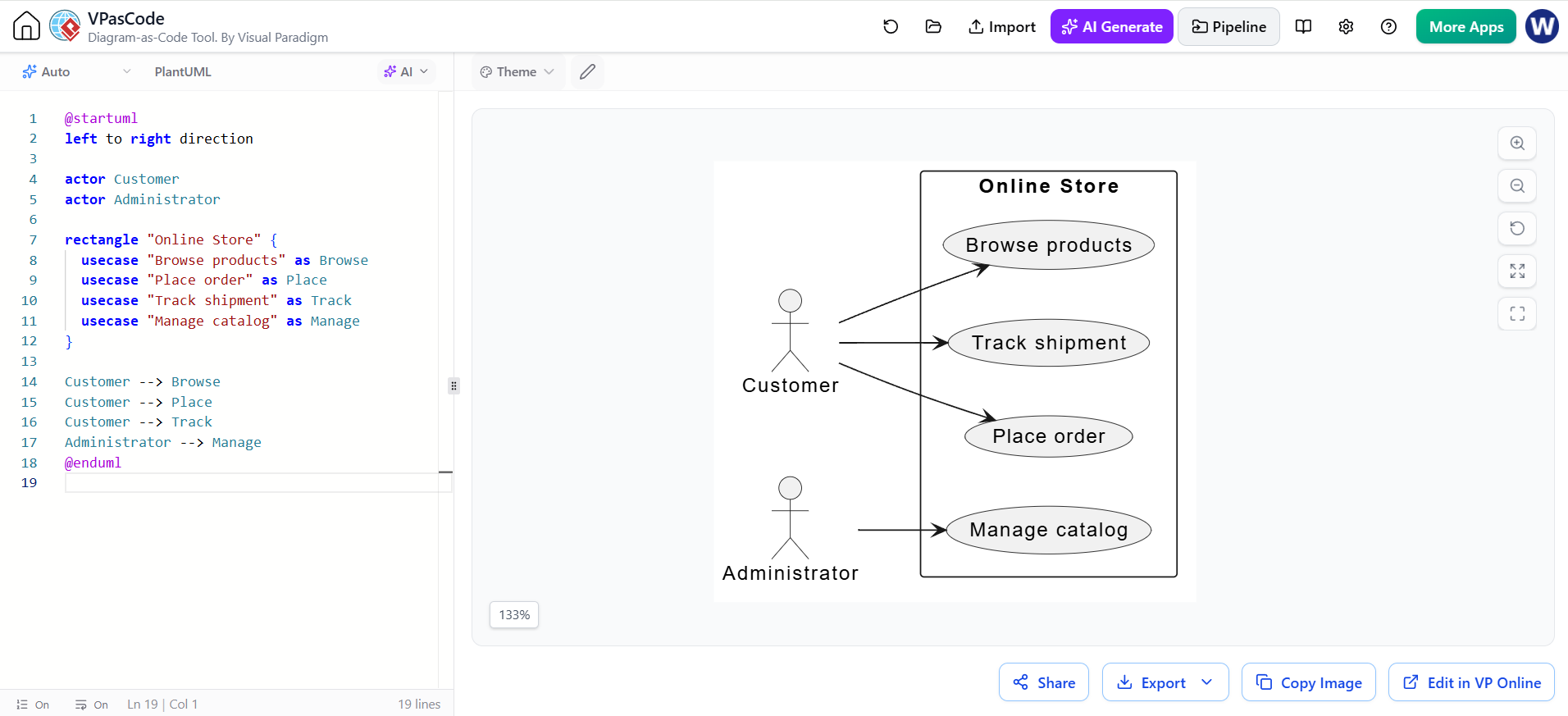
Use-case diagrams identify actors and system capabilities.
@startuml
left to right direction

actor Customer
actor Administrator

rectangle "Online Store" {
  usecase "Browse products" as Browse
  usecase "Place order" as Place
  usecase "Track shipment" as Track
  usecase "Manage catalog" as Manage
}

Customer --> Browse
Customer --> Place
Customer --> Track
Administrator --> Manage
@enduml
11. Improving layout and readability
AI can generate valid code that produces a difficult-to-read diagram. Layout quality is part of diagram quality.
Useful PlantUML techniques include:
This changes the general orientation of many diagrams.
Use packages or rectangles to establish boundaries:
package "Order Management" {
  [Order API]
  [Order Worker]
}
Use aliases to keep long names readable:
component "Customer Notification Service" as Notification
Use line breaks in labels when necessary:
[Payment Service\n(PCI boundary)] as Payment
Use notes for clarifying context:
note right of Payment
  Handles payment authorization.
  Card data is not stored locally.
end note
Use colors sparingly:
skinparam component {
  BackgroundColor<<critical>> #FFCCCC
  BorderColor<<critical>> #990000
}

[Payment Service] <<critical>>
A useful rule is to optimize for comprehension rather than decoration. If a diagram needs many colors, gradients, or decorative elements to remain understandable, it may contain too much information.
12. Prompting for better diagrams
A strong AI prompt usually has five parts:
-
Role or context
“You are documenting a microservice architecture…” -
Diagram type
“Create a PlantUML component diagram…” -
Entities
“Include the browser, API gateway, order service, payment service…” -
Relationships and behavior
“Show synchronous calls, asynchronous events, and database ownership…” -
Output constraints
“Use valid PlantUML syntax, group components by boundary, avoid implementation details, and keep labels concise.”
Example:
You are documenting a production e-commerce platform.

Create a PlantUML component diagram. Include:
- Customer browser
- CDN
- Frontend
- API gateway
- Catalog service
- Order service
- Payment service
- Notification service
- PostgreSQL
- Redis
- Kafka
- External payment provider

Show:
- Browser traffic through the CDN and frontend
- API gateway routing
- Catalog reads from Redis and PostgreSQL
- Order events published to Kafka
- Payment authorization through the external provider
- Notifications consuming order events

Group components into Client, Application, Messaging, Data, and External Systems. Use concise labels and avoid showing individual classes or HTTP endpoints.
For modifications, constrain the scope:
Modify only the order-processing portion of this PlantUML diagram. Add a fraud-checking service between Order Service and Payment Service. Preserve all existing participants, labels, and unrelated relationships.
13. Reviewing AI-generated diagrams
AI-generated diagrams should pass both a syntax review and a domain review.
Syntax review
Check that:
-
The diagram renders successfully.
-
All blocks are closed.
-
Participants and aliases are consistent.
-
Relationship syntax matches PlantUML.
-
No Mermaid or Graphviz syntax has been mixed in.
-
Special characters are handled correctly.
Semantic review
Check that:
-
Every major component is present.
-
Relationships represent the real system.
-
Direction arrows are meaningful.
-
Data stores are not shown as services unless intended.
-
Trust boundaries are accurate.
-
External systems are clearly identified.
-
Error paths are not omitted where they matter.
-
The level of detail matches the audience.
Communication review
Check that:
-
The diagram has one primary purpose.
-
Labels are short and specific.
-
The reading direction is obvious.
-
The diagram is not overloaded.
-
Similar components are grouped.
-
The title explains what is being shown.
-
A reader unfamiliar with the implementation can understand it.
AI can produce a diagram that is syntactically valid but architecturally wrong. Treat rendering success as the beginning of review, not the end.
14. Version-controlling VPasCode diagrams
Store the PlantUML source alongside the documentation or application code:
docs/
├── architecture/
│   ├── system-context.puml
│   ├── container-view.puml
│   ├── login-sequence.puml
│   └── order-flow.puml
└── README.md
A useful naming convention is:
<subject>-<diagram-type>.puml
Examples:
authentication-sequence.puml
billing-component.puml
order-state.puml
deployment-diagram.puml
A source-controlled workflow might be:
-
Update the
.pumlfile. -
Open or paste it into VPasCode.
-
Review the live rendering.
-
Export a preview if needed.
-
Commit the source change.
-
Update generated images or documentation only when required.
-
Review diagram changes together with code or architecture changes.
Example commit messages:
docs: add OAuth login sequence diagram
docs: show Redis cache in catalog architecture
docs: simplify order component diagram
Avoid committing only a PNG or SVG when the source can be preserved. Images are difficult to diff and edit; PlantUML source is searchable and reviewable.
15. Exporting and sharing diagrams
Once the diagram is complete, VPasCode supports exporting rendered diagrams in common formats such as:
-
SVG: Best for documentation, websites, and scalable technical diagrams.
-
PNG: Convenient for presentations, tickets, chat, and lightweight sharing.
-
PDF: Useful for printing and formal documents.
VPasCode also documents shareable URLs for live diagrams, allowing others to view the rendered work without manually reproducing the source.
Use SVG when:
-
Text must remain sharp at different sizes.
-
The diagram will appear in a web page.
-
You want to edit or inspect the vector output.
Use PNG when:
-
A tool does not support SVG.
-
You need a simple image attachment.
-
The diagram is going into a chat message or issue tracker.
Use PDF when:
-
The diagram is part of a printable specification.
-
It will be distributed as a formal document.
-
Page layout matters.
16. Translating PlantUML diagrams
AI translation can be useful when labels need to be presented to international teams. However, translate diagram text rather than technical syntax.
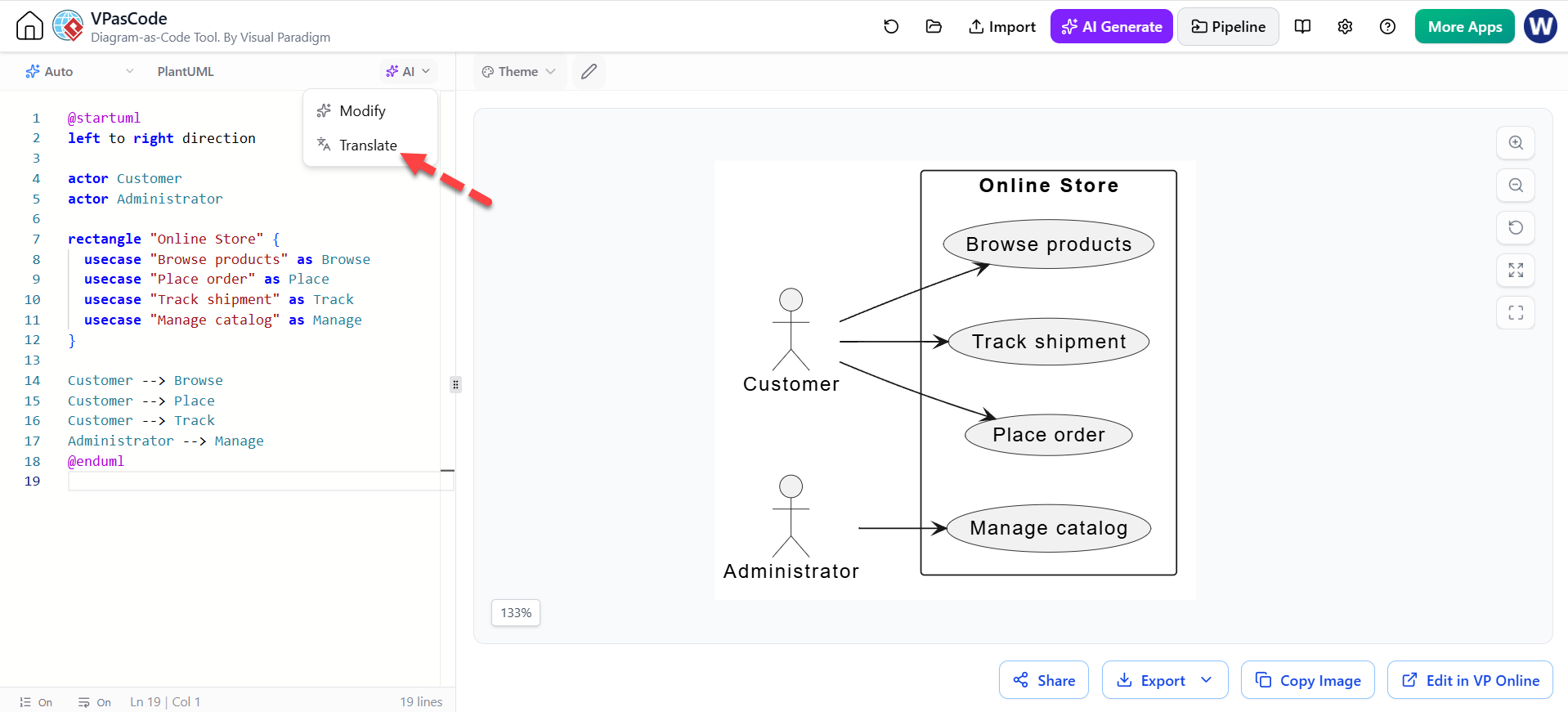
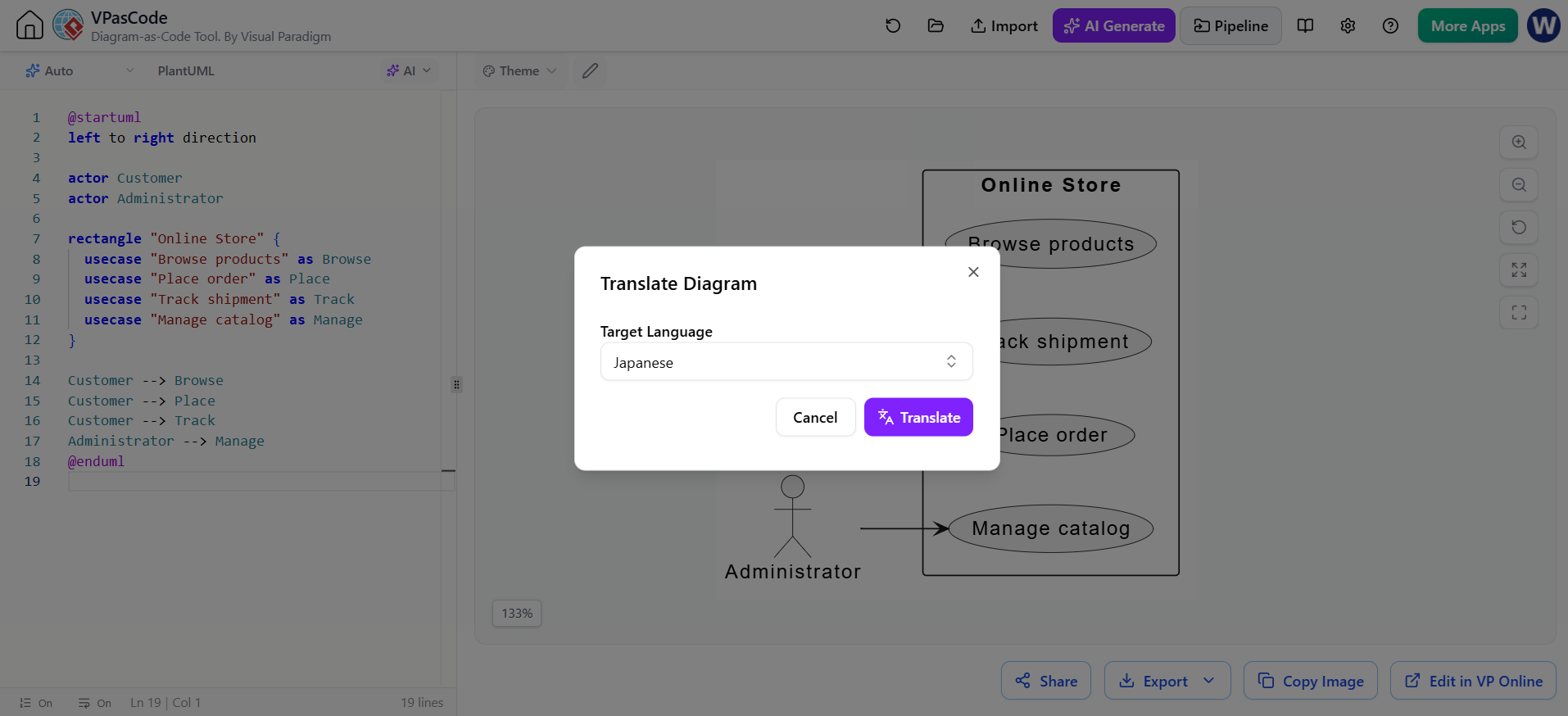
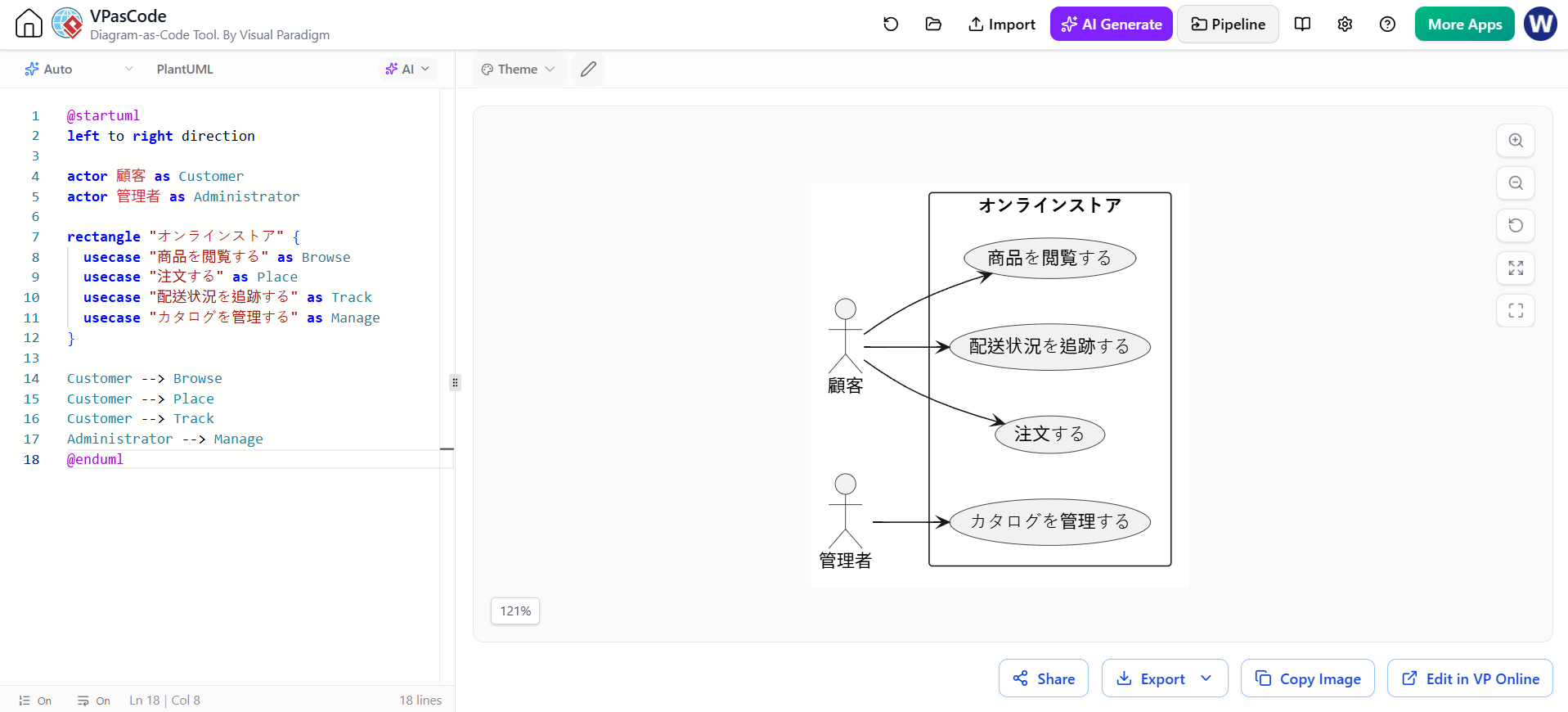
For example, translate this:
into another language while preserving:
-
Customer -
OrderService -
Arrow syntax
-
PlantUML keywords
-
Aliases
-
URLs
-
API names
-
Product names
-
Acronyms
A translation prompt should be explicit:
Translate only visible labels and message text into Japanese. Do not change PlantUML keywords, aliases, relationship syntax, API names, product names, or code identifiers.
Review translations of domain-specific terms carefully. A literal translation may be grammatically correct but technically misleading. VPasCode describes AI translation as a capability for converting diagram text and labels across languages.
17. Common problems and solutions
The diagram does not render
Check:
-
@startumland@enduml -
Misspelled PlantUML keywords
-
Unclosed
alt,loop,package, orrectangleblocks -
Invalid aliases
-
Special characters in labels
-
Whether the pasted code is actually PlantUML
Ask AI:
Find the PlantUML syntax error. Preserve the intended participants and message order. Return corrected PlantUML code and briefly explain the correction.
The diagram is too wide
Try:
-
Using
left to right directiononly when it improves the layout -
Splitting one large diagram into several views
-
Shortening participant names with aliases
-
Grouping related components
-
Removing low-value interactions
-
Moving explanatory text into notes or documentation
The diagram is too detailed
Ask:
Simplify this PlantUML diagram for an executive architecture overview. Keep only major systems, external dependencies, and primary data flows. Remove classes, methods, infrastructure details, and implementation-level messages.
AI changes unrelated content
Use narrow prompts:
Modify only the payment flow. Do not rename participants, change existing relationships, or alter any other section.
Review the generated diff before accepting it.
AI invents components
Provide a closed list:
Use only these components: Browser, API Gateway, Order Service, Payment Service, PostgreSQL, and Payment Provider. Do not introduce additional services.
The generated diagram is technically plausible but wrong
Add authoritative context to the prompt, such as:
-
Actual service names
-
Ownership boundaries
-
Protocols
-
Data stores
-
Authentication assumptions
-
Failure behavior
-
Deployment constraints
Then validate the result with the system owner or engineering team.
18. Recommended workflow for teams
A reliable team workflow combines AI speed with human ownership:
Discovery
Describe the system in natural language and ask AI for a rough PlantUML draft.
Structuring
Add explicit boundaries, aliases, titles, and diagram scope.
Validation
Compare the diagram with architecture documents, source code, API specifications, or discussions with system owners.
Refinement
Use AI for focused changes such as grouping, simplification, or adding an error path.
Review
Render the result in VPasCode and inspect both the code and the visual output.
Publication
Export SVG or PDF for documentation, or share a live link when appropriate.
Maintenance
Store the .puml source in version control and update it when the system changes.
The key principle is:
Use AI to accelerate diagram creation and editing, but keep humans responsible for architectural accuracy.
19. Practical checklist
Before publishing a VPasCode PlantUML diagram, verify:
-
The diagram has a clear purpose.
-
The title describes what the reader is seeing.
-
The PlantUML source is saved.
-
The code renders without errors.
-
Names and aliases are consistent.
-
Boundaries are visually clear.
-
External systems are distinguished from internal systems.
-
Relationships reflect the real architecture or process.
-
Error and alternative paths are included when important.
-
The diagram is readable at its intended display size.
-
Unnecessary detail has been removed.
-
AI-generated changes have been reviewed.
-
The exported format matches the destination.
-
The source is committed alongside related documentation or code.
Conclusion
VPasCode makes PlantUML more accessible by combining text-based diagramming, immediate rendering, and AI-assisted generation and editing in one workspace. The most productive approach is not to ask AI for a finished diagram and accept it blindly. Instead, use AI to overcome the blank page, generate repetitive syntax, fix errors, translate labels, and perform controlled refactoring.
The strongest workflow is:
Describe → Generate → Render → Review → Refine → Version-control → Publish
PlantUML remains the structured source of truth, while VPasCode provides the interactive environment for turning that source into clear, maintainable technical diagrams.