


Visual Paradigm’s suite of AI-powered tools and agentic features—such as automated diagram generation, conversational refactoring, and code translation—rely on Large Language Models (LLMs) to perform complex tasks. By default, these tools run on Visual Paradigm’s standard system model.
With Custom AI Endpoint Support, workspace managers can swap out the default AI engine and connect their own enterprise AI provider or self-hosted LLM. This gives teams total control over data security, model performance, and API cost management.
Why Connect Your Own AI Provider?
Routing Visual Paradigm’s AI requests through your organization’s custom endpoint brings several key enterprise benefits:
-
Strict Data Governance & Security: Route all prompt traffic through your IT team’s approved AI provider accounts (e.g., private Azure OpenAI or AWS Bedrock setups) to meet strict compliance standards.
-
Model Selection Flexibility: Choose specific LLM models based on your exact task needs—whether you need ultra-fast generation speeds or deep-reasoning capabilities for complex architecture models.
-
Direct Cost & Quota Management: Apply your corporate API keys to take advantage of volume pricing, set token limits, and monitor usage through your provider dashboard.
-
Workspace-Wide Enforcement: Enable the configuration once at the manager level to instantly apply it to every team member in your shared cloud workspace.
Supported AI-Powered Features
The custom AI endpoint directly powers key agentic and conversational AI tools across the platform, including:
- Visual Paradigm AI Diagramming Chatbot
- Visual Paradigm VPasCode, including:
- Visual Paradigm Vpp Chatbot
- Visual Paradigm Desktop AI Diagram Generation
(Note: AI capabilities outside this list will continue using the default system configuration.)
Prerequisites and License Requirements
Configuring a custom AI endpoint requires specific admin rights and qualifying licenses:
-
Role Requirement: You must be a designated Workspace Manager to set up or modify endpoint settings.
-
License Requirements:
- Visual Paradigm Online: Deluxe Edition or higher.
- Visual Paradigm Desktop: Professional Edition or higher.
Because endpoint settings apply workspace-wide, all team members using these AI features must hold an eligible license. Unlicensed users will not be able to route requests through the custom endpoint.
Step-by-Step Configuration Guide
To set up your AI endpoint, follow these steps:
-
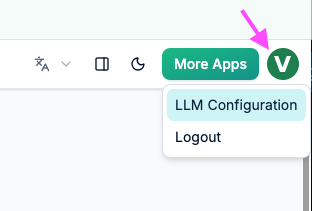
Access the Configuration Screen
Open the settings menu inside any supported Visual Paradigm AI tool or application and navigate to the LLM Configuration page.
-
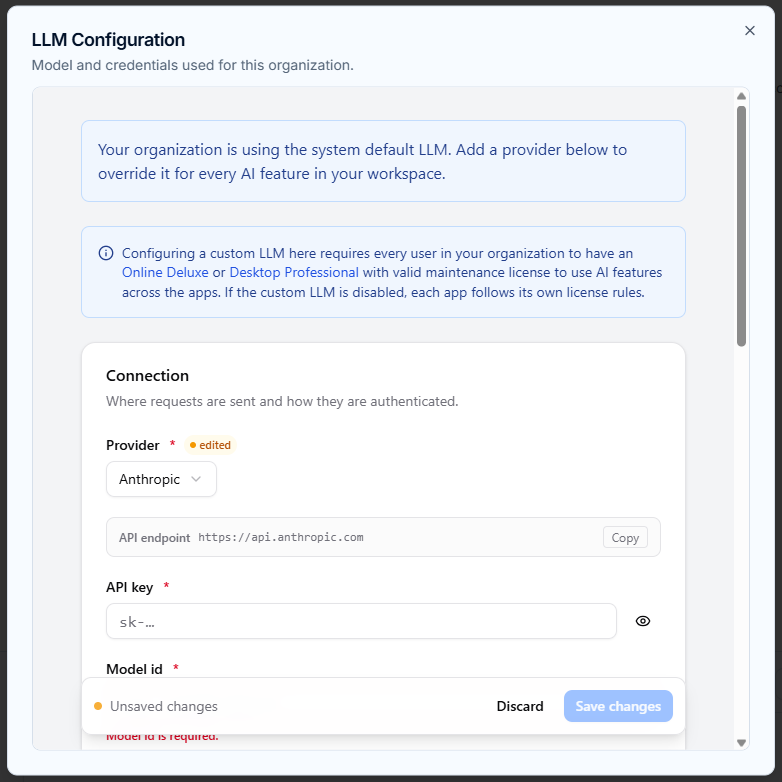
Select Your AI Provider
Choose your provider from the built-in list of supported vendors (including OpenAI, Anthropic, Google Gemini, DeepSeek, Groq, Mistral, Qwen, Cohere, and more).
-
Provide API Credentials & Model ID
-
API Key: Paste your provider’s secret API key.
-
Model ID: Enter the exact model name string (e.g.,
claude-sonnet-4-6,gpt-5.6-luna, orgemini-3.7-flash).
-
-
Fine-Tune Model Behavior (Optional)
-
Max Output Tokens: Adjust the token cap higher for long documentation responses or lower for quick diagram edits.
-
Reasoning Effort / Thinking Mode: Adjust parameters for models that support chain-of-thought or deep-thinking modes.
-
-
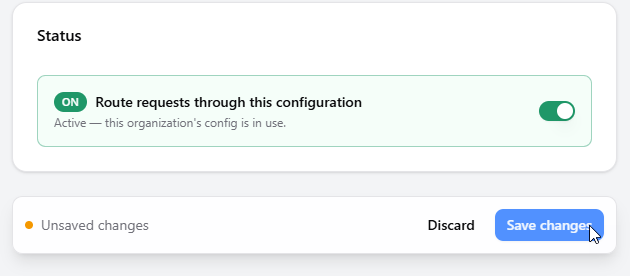
Enable Routing and Save
Toggle the option “Route requests through this configuration” and click Save changes. All supported AI features in your workspace will immediately route through your custom endpoint.
Using Self-Hosted or Custom LLM Providers
If your company hosts its own private AI models or uses an unlisted vendor:
-
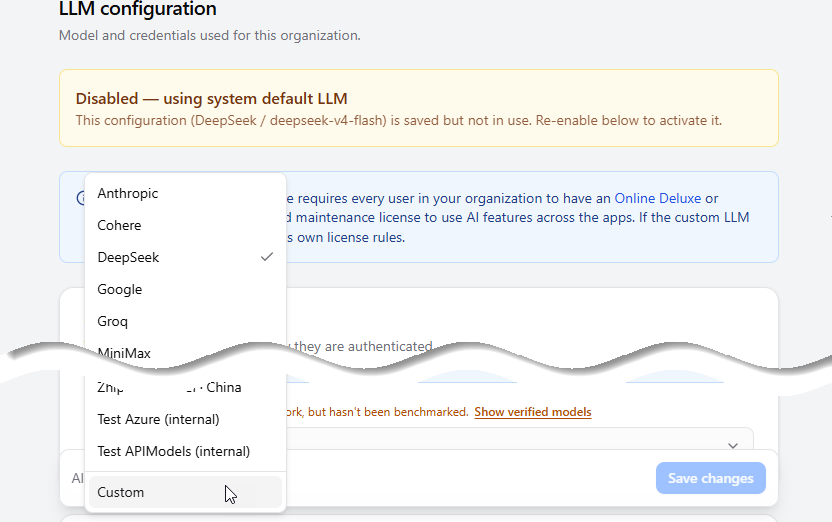
Select Custom in the provider drop-down list on the LLM configuration page.
-
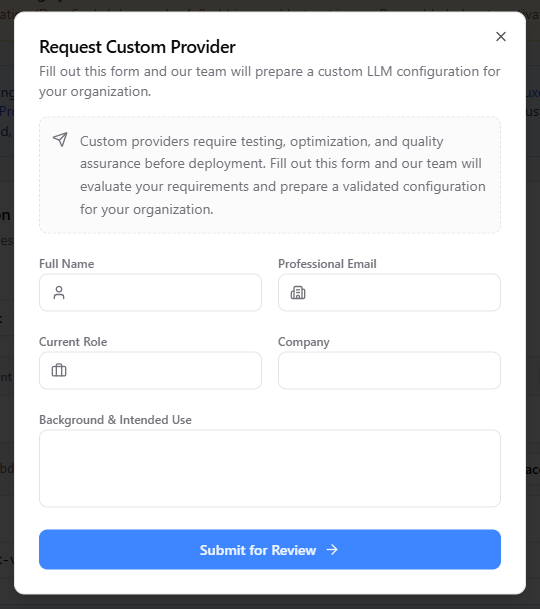
Fill out the Request Custom Provider form.
-
The Visual Paradigm engineering team will review your deployment requirements, run compatibility tests, and prepare a validated configuration for your workspace.
How to Remove or Reset a Custom Endpoint
If you need to disconnect your provider and switch back to default settings:
-
Go to the LLM Configuration page.
-
Scroll to the bottom Danger Zone section.
-
Click Delete configuration.
Deleting the configuration instantly reverts all AI operations across the workspace back to Visual Paradigm’s default system model.
Recommended AI Models for Daily Use
To help you choose the right model, Visual Paradigm tested several options. Below is a breakdown of how different models performed during internal tests:
Fast Performance for Daily Tasks
These models gave quick responses while maintaining good quality for everyday work:
-
MiniMax-M2.7-highspeed
-
gpt-5.6-luna
-
gpt-5.6-sol
-
gpt-5.6-terra
-
claude-sonnet-4-6
-
gemini-3.6-flash
-
gemini-3.7-flash
-
glm-5.3
-
glm-5.3-flash
-
qwen3.8-max
-
qwen3.8-flash
-
deepseek-v4-flash-0731
-
mistral-medium-3-5
-
mistral-large-2407
-
grok-4.6
Slower Response Times
These models took longer to generate answers during testing:
-
MiniMax-M2.7
-
MiniMax-M3
-
claude-opus-4-6-thinking
-
glm-5.2
-
kimi-k3
Note: Speed can change based on your internet connection, server traffic, provider limits, and task size. Other models may work with Visual Paradigm even if they are not listed here.
Frequently Asked Questions
What is a custom AI endpoint in Visual Paradigm?
It lets your team route supported AI tools through your own chosen AI provider and model instead of using Visual Paradigm’s default AI service.
Which tools support custom endpoints?
It works with the AI Diagramming Chatbot, VPasCode AI tools, Vpp Chatbot, and Desktop AI Diagram Generation.
Who can set this up?
Only Workspace Managers can create or change these settings.
What licenses are needed?
You need Visual Paradigm Online (Deluxe Edition or higher) or Visual Paradigm Desktop (Professional Edition or higher).
What happens if routing isn’t turned on?
If you don’t check “Route requests through this configuration,” the app will automatically use Visual Paradigm’s default AI model.
Can we use our own private or self-hosted AI model?
Yes. Select Custom under the provider settings and submit the request form. The team will review your setup and help configure it.
Does this apply to all AI features in Visual Paradigm?
Not yet. It only applies to the specific tools listed above. If you need it for other features, contact the Visual Paradigm team.
Related Articles & Links
-
Read the original feature announcement on the Visual Paradigm Release Updates.
-
Explore interactive modeling tools on the Visual Paradigm Main Website.
-
Browse more step-by-step tutorials on the Visual Paradigm Guides Portal.