


Creating deployment diagrams can feel overwhelming. You need to map out nodes, artifacts, and connections accurately while showing how software components run on hardware in real environments. Manual drawing takes forever, and many tools offer basic generation without depth or traceability.
That’s where Visual Paradigm shines as a top AI diagram generator. As an AI deployment diagram generator and AI-powered diagram software, it delivers more than quick sketches. Our ecosystem covers everything from instant AI creation to professional refinement and team collaboration. With support for UML deployment diagrams plus C4 deployment views, Visual Paradigm stands out among AI diagram tools.
In this guide, you’ll see how our four platforms work together to handle deployment diagrams end-to-end. Whether you’re a software architect documenting cloud infrastructure or a DevOps engineer mapping production environments, we’ve got you covered.
VP Desktop: Full-Power AI Deployment Diagram Creation and Editing
VP Desktop serves as the core of our ecosystem for serious modeling work. This flagship application brings AI directly into a robust desktop environment built for complex projects.
Start with our AI Diagram Generator right inside VP Desktop. Describe your system—like “a cloud-based e-commerce platform with load balancers, web servers, and database clusters”—and watch the AI produce a complete deployment diagram. It handles nodes, execution environments, artifacts, and dependencies automatically, following UML standards or C4 principles when needed.
But generation is just the beginning. Once created, you get full editing control. Add stereotypes for cloud providers (AWS, Azure), refine connections, set up traceability to requirements or components, and integrate with code engineering features. Export to code, generate reports, or link to version control for team projects.
Users love this blend: AI saves hours on setup, while desktop tools ensure accuracy and scalability. Perfect for enterprise architects who need offline access and production-ready models. No other AI UML diagram maker combines this level of depth with generation speed.
How to Generate a Deployment Diagram with AI in VP Desktop
- From the main menu, select Tools > AI Diagram Generation. This opens the AI Diagram Generation window.
- In the window, choose your desired diagram type from the dropdown list. In this case, Deployment Diagram.
- In the text area, describe your project, problem, system, or scenario.
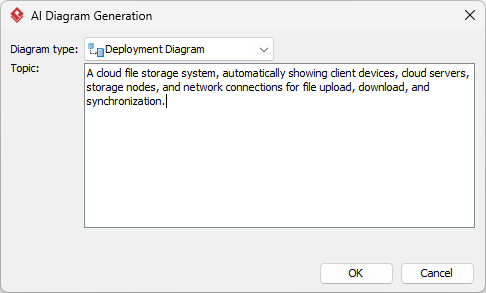
- Click OK to start the generation.
- The AI will create the diagram automatically.
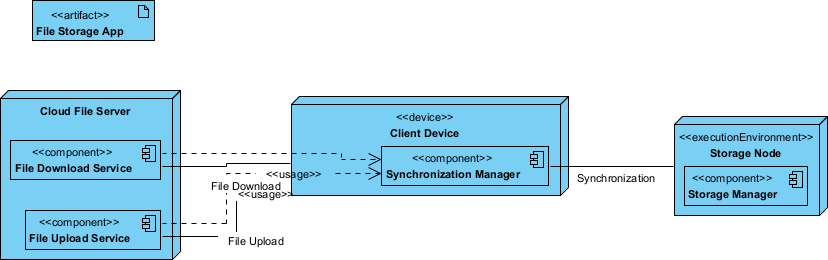
It appears as a fully editable, native Visual Paradigm diagram (not just an image). You can now:
- Edit elements, relationships, layout, or properties
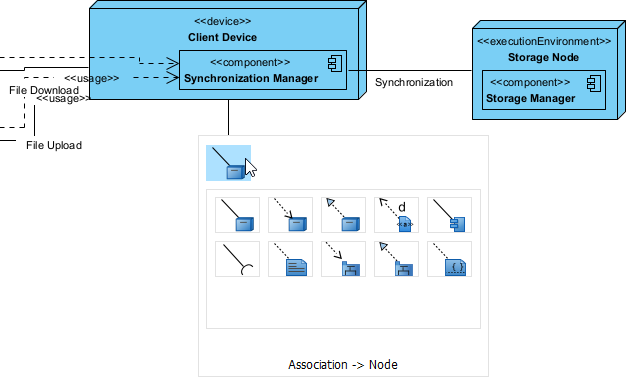
- Add more details manually
- Export as image (PNG, SVG, etc.), PDF, or use in reports
- Generate code or documentation if applicable
- Edit elements, relationships, layout, or properties
OpenDocs: Embed and Collaborate on Dynamic Deployment Diagrams
OpenDocs changes how teams handle documentation. Think of it as a smart wiki or knowledge base where diagrams live inside documents—not as static images, but as editable, updatable elements.
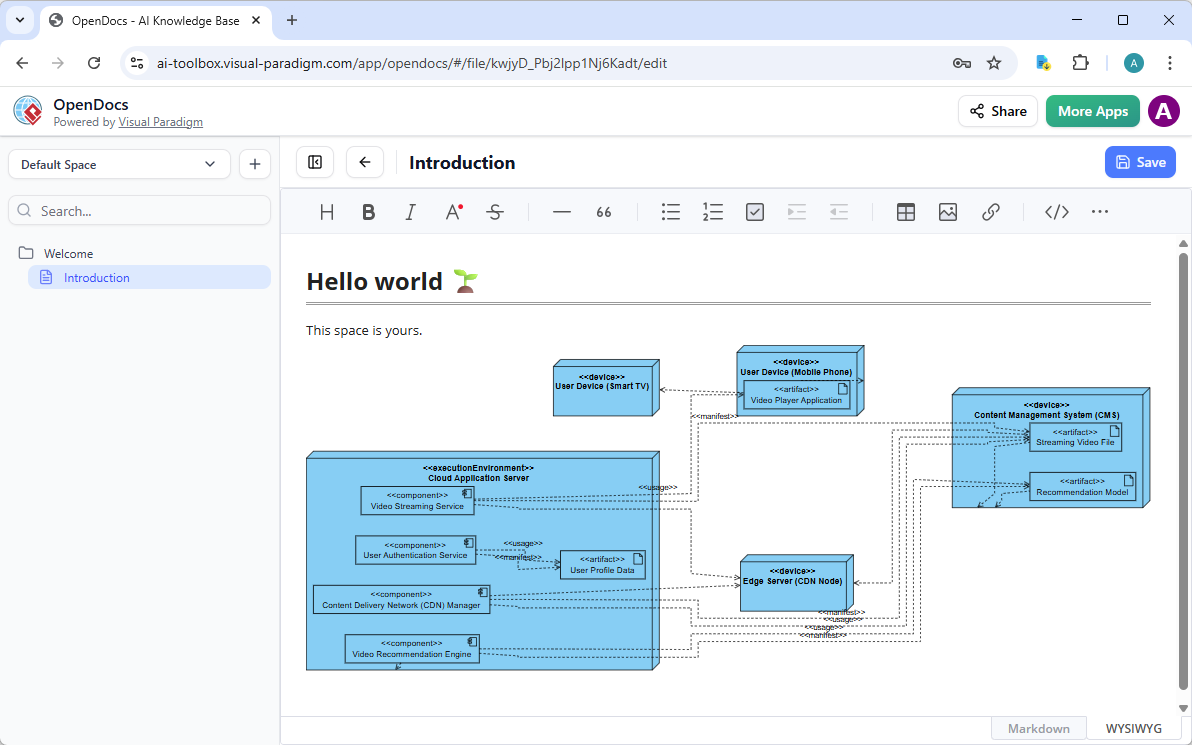
For deployment diagrams, embed them directly into architecture overviews, deployment guides, or incident response plans. Generate the initial diagram via AI, then insert it inline. Team members can click to refine nodes or connections without leaving the doc.
This keeps everything in sync. Update the deployment view for a new server cluster? The change reflects across linked documents automatically. It’s ideal for knowledge sharing, onboarding new devs, or maintaining living architecture docs.
How to Insert an AI Generated Deployment Diagram into Your OpenDocs Page
- Open or create a page in OpenDocs: Log in to your Visual Paradigm Online workspace, navigate to OpenDocs, and either open an existing page or create a new one (via + New Document Page or similar).
- Insert a diagram: In the page editor, look at the top toolbar (or floating toolbar) and click Insert. From the popup window, select Diagram > Deployment Diagram.
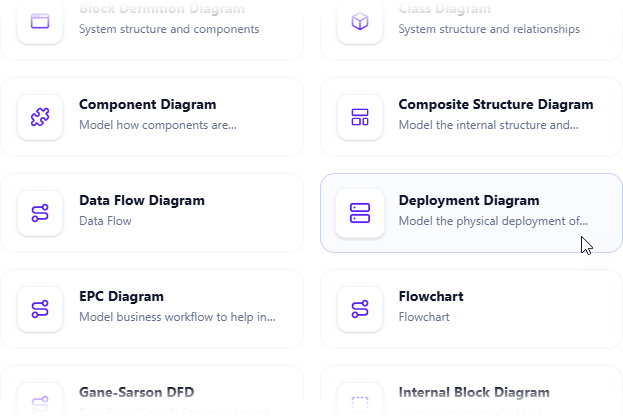
- Start creating the diagram with AI: This opens the diagram editor window. You can build it manually by dragging and dropping elements if you prefer. To use AI instead: Look for Create with AI in the top-right corner of the editor window and click it.
- Describe your problem and generate: In the text input area that appears, type a clear, detailed description of your system or scenario. Click Generate.
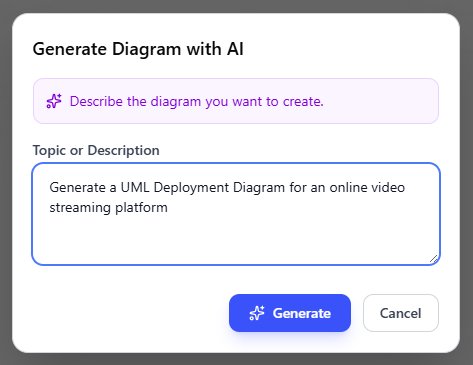
- Review, refine, and embed the diagram: The AI generates a professional deployment diagram instantly.
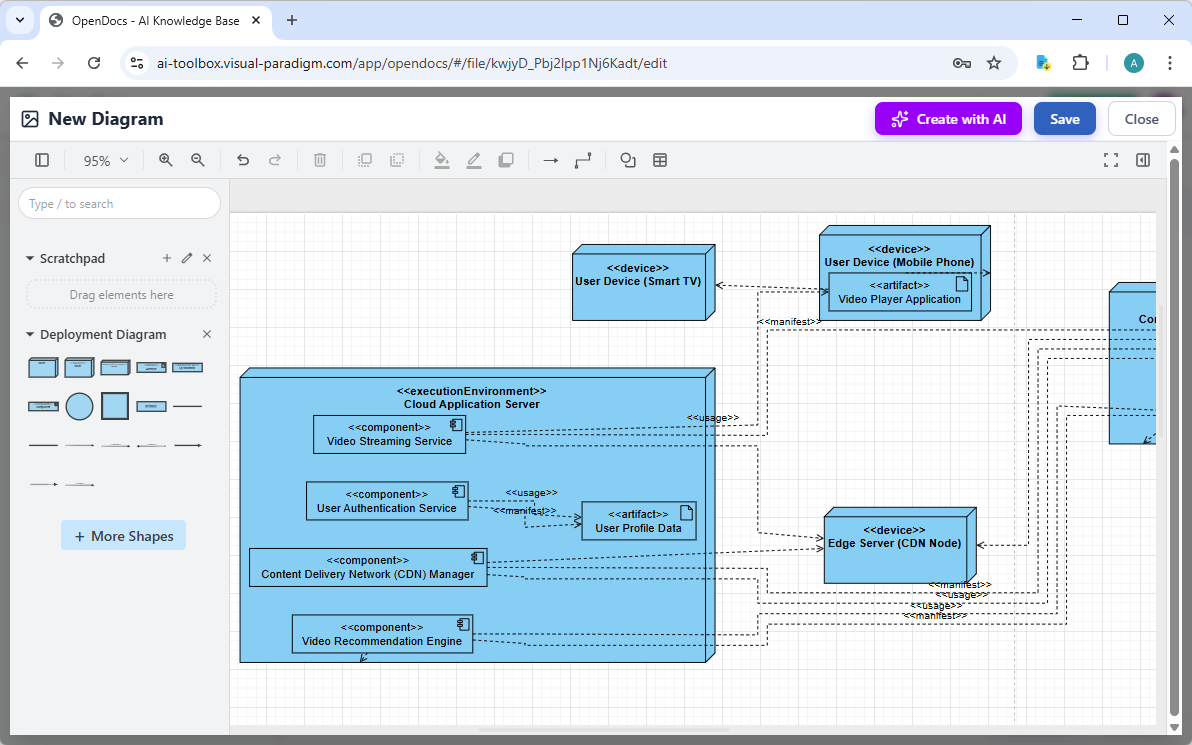
Use the intuitive drag-and-drop editor to touch up anything: move elements, adjust labels, add notes, change styles, etc. When you’re happy with it, click Save. Then click Close. The diagram is now embedded directly into your OpenDocs page as a live, editable visual block. You can view it inline without leaving the document.
AI Visual Modeling Chatbot: Conversational Deployment Diagram Magic
Need a deployment diagram fast? Our AI Visual Modeling Chatbot turns natural language into visuals instantly. Just type: “Generate a deployment diagram for a microservices app running on Kubernetes with three nodes and a load balancer.”
The chatbot analyzes your description, applies modeling best practices, and delivers an editable diagram. Not happy with the first version? Say “Add a backup database node” or “Show high-availability setup with redundancy”—it updates live.
Go further: Ask for explanations (“How does this deployment handle failover?”), generate reports, or explore alternatives (“Show the same on AWS instead”). It supports UML deployment diagrams, C4 deployment views, and more, bridging quick ideation with professional outputs.
This platform excels at overcoming blank-canvas syndrome. Brainstorm with the team in real time, prototype infrastructure changes, or get novices productive fast. It’s your AI co-pilot for agile environments where speed and iteration matter most.
How to Generate a Deployment Diagram with AI Chatbot
-
Open the AI Chatbot:
- Web access: Go to https://chat.visual-paradigm.com/ (or https://ai-toolbox.visual-paradigm.com/app/chatbot/ as an alternative entry point).
- VP Desktop access: In Visual Paradigm Desktop, select Tools > Chatbot from the main menu. (This opens the same AI assistant integrated within your desktop environment.)
-
Start a new chat session: Click New Chat (on the left sidebar or as a prominent button) to begin a fresh conversation.
-
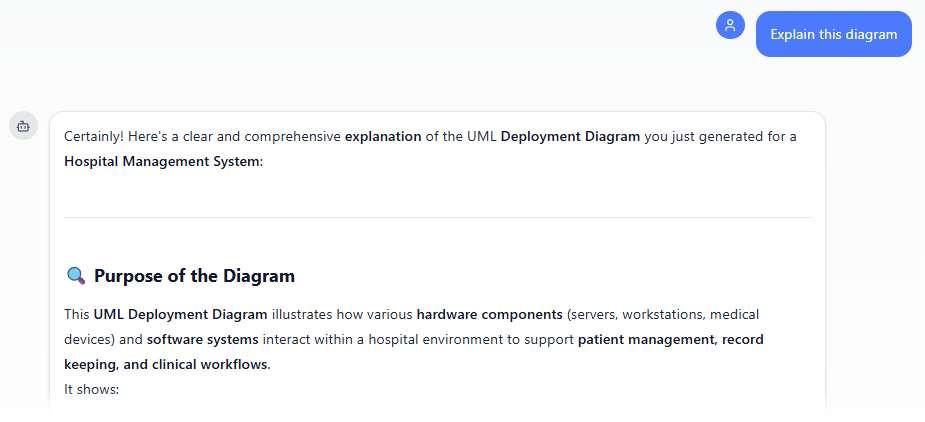
Describe what you want: In the text input area at the bottom, type a clear description of your project, system, or scenario (e.g. Produce a UML Deployment Diagram for a hospital management system, automatically showing the servers, workstations, medical devices, and network connections required for patient management and record keeping). Press Enter (or click the send icon) to submit your message.
-
View and refine the diagram: The AI generates the diagram almost instantly.
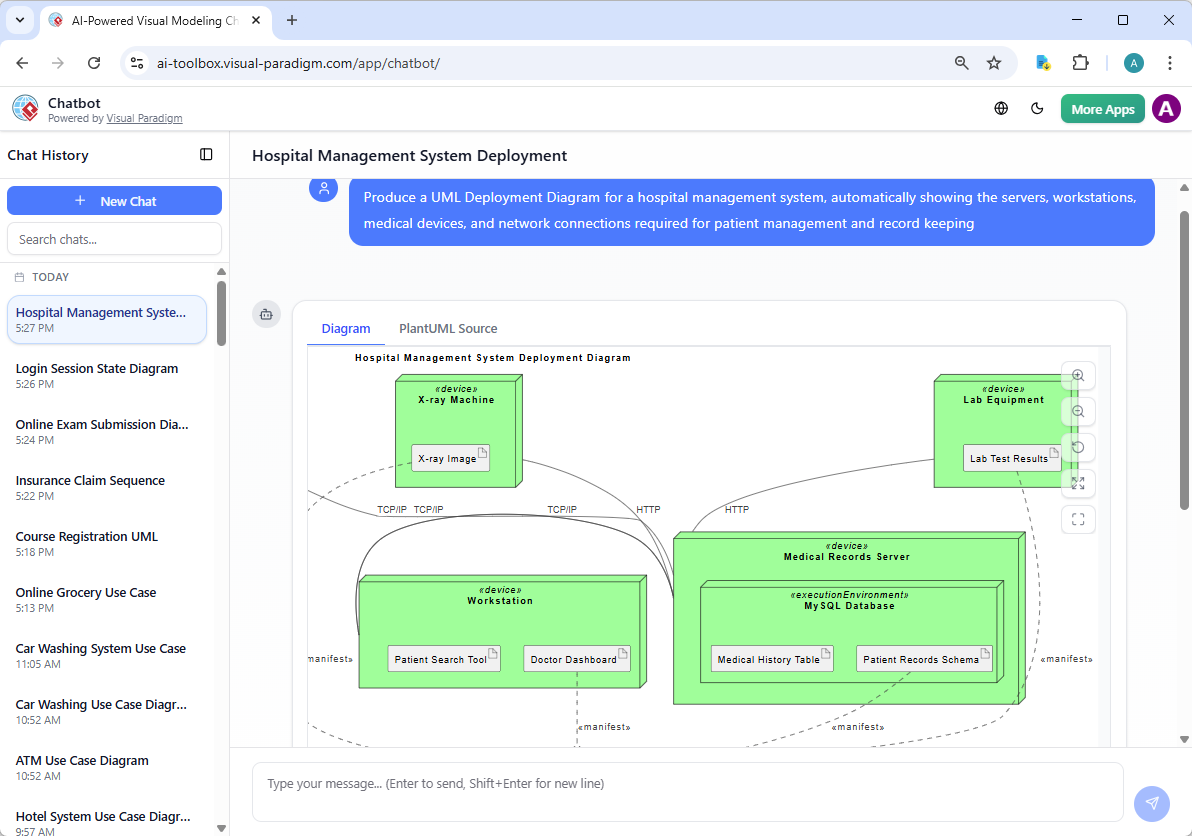
This is where the chatbot shines: keep the conversation going! Follow-up examples:
- “Add an element…”
- “Explain the diagram…. “
- “Generate a brief report summarizing ….”
Web Apps: Guided, Step-by-Step AI Deployment Tools
Our browser-based Web Apps provide structured, guided experiences for specific modeling tasks. For deployment diagrams, use specialized studios that enforce best practices and maintain consistency across models.
Step through defining nodes, mapping artifacts, and setting up dependencies with AI suggestions along the way. These tools promote traceability—linking your deployment view to components, requirements, or C4 containers automatically.
Great for methodical projects like compliance-heavy systems or when teaching teams proper architecture modeling. No guesswork; the guided flow ensures reliable, interconnected diagrams that scale with your enterprise needs.
Access them anywhere, collaborate in real time, and integrate seamlessly with the rest of our ecosystem. It’s AI assistance wrapped in a systematic workflow.
Why Visual Paradigm Beats Other AI Diagram Tools
Many AI tools generate pretty pictures and stop there. Visual Paradigm goes further with true end-to-end support. Generate via chat or desktop AI, refine professionally, embed in docs, and guide with structured apps—all while maintaining real traceability.
Key advantages:
- Widest coverage for UML, C4, SysML, and beyond—including full deployment diagram support
- Multiple entry points: chat for speed, desktop for precision, docs for sharing, web for guidance
- Professional outputs: traceable models, code integration, team collaboration, version control
- Real refinement—not one-shot generation; iterate without losing quality
Competitors often silo features. We connect them into one ecosystem that saves time, cuts errors, and scales from solo devs to large teams. If you’re searching for the best AI tool for creating deployment diagrams, this integrated approach makes Visual Paradigm the clear leader.
Ready to Transform Your Deployment Diagramming?
Visual Paradigm delivers the most complete AI-powered visual modeling experience available. From instant generation with our AI deployment diagram generator to deep editing and collaborative sharing, our four platforms cover every need.
Stop wrestling with manual tools or limited generators. Experience seamless AI assistance that produces professional, traceable deployment diagrams fast.
Try Visual Paradigm today—sign up for free and see why we’re the ultimate choice for AI diagram tools and visual modeling. Your next deployment diagram awaits.