

In this practical session, you’ll model dynamic behavior using Sequence Diagrams in Visual Paradigm. We’ll focus on the Borrow Book use case from Module 2, showing how objects (from your class diagram) interact over time to realize the main success scenario and one key alternative (book unavailable).
Sequence diagrams bring use case flows to life: lifelines represent participants (Patron, System/LibrarySystem, Book, Loan, Member), messages show interactions, and fragments handle conditions/loops. By the end, you’ll see direct traceability from use case narratives to runtime interactions — perfect for validation, test case derivation, and guiding implementation in Agile sprints.
Generating a Sequence Diagram with AI
Visual Paradigm’s AI can generate a sequence diagram draft from a use case description — great for rapid prototyping.
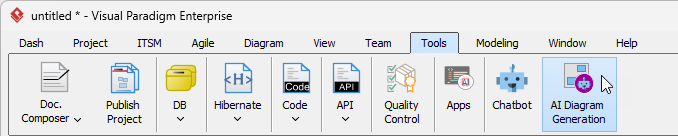
- Select Tools > AI Diagram Generation from the main menu.
- In the AI Diagram Generation window, select Sequence Diagram as the type. In the Topic field, enter a clear description based on the use case, e.g.:
“Sequence diagram for Borrow Book use case in Library Management System: Patron searches and selects a book, system checks availability, Patron requests borrow, system validates member status and borrowing limit, records loan, assigns due date, confirms success. Include alternative: if book unavailable, notify Patron. Participants: Patron, LibrarySystem, Book, Member, Loan.”
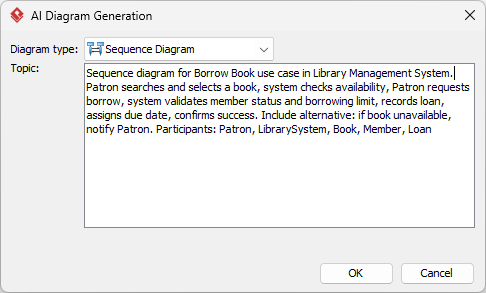
Click OK.
- The AI generates a sequence diagram. Review lifelines, messages, and any fragments (e.g., alt for conditions).
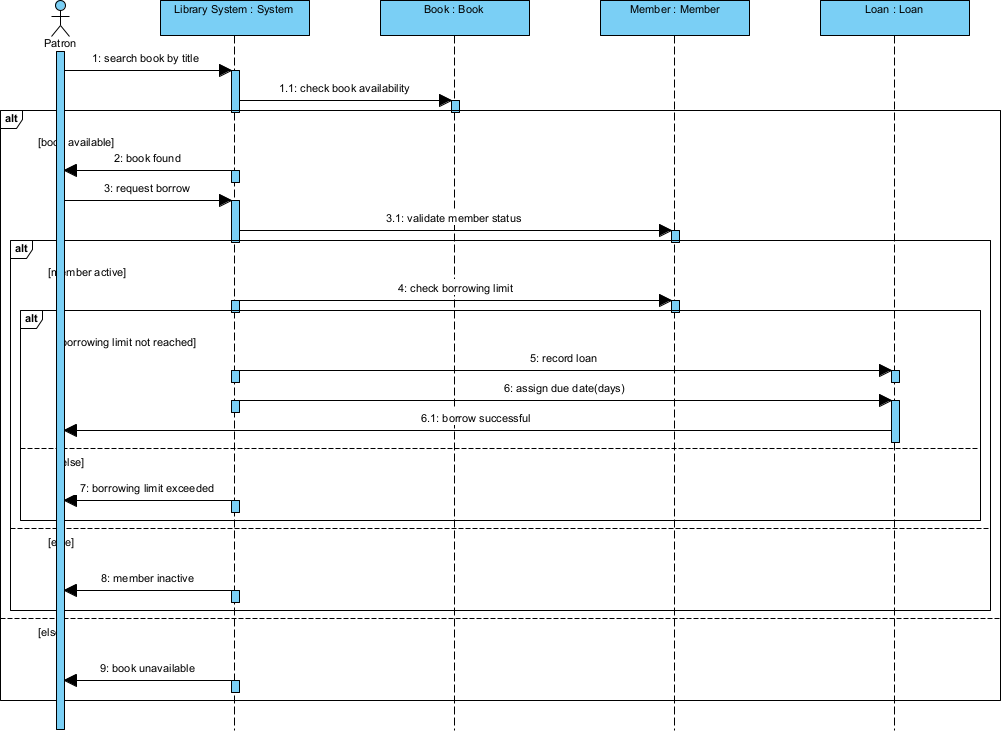
- Refine manually: adjust message names/ordering, add activation bars, create or edit fragments (alt/opt/loop), or add notes. Detailed manual editing follows next.
Drawing a Sequence Diagram Manually
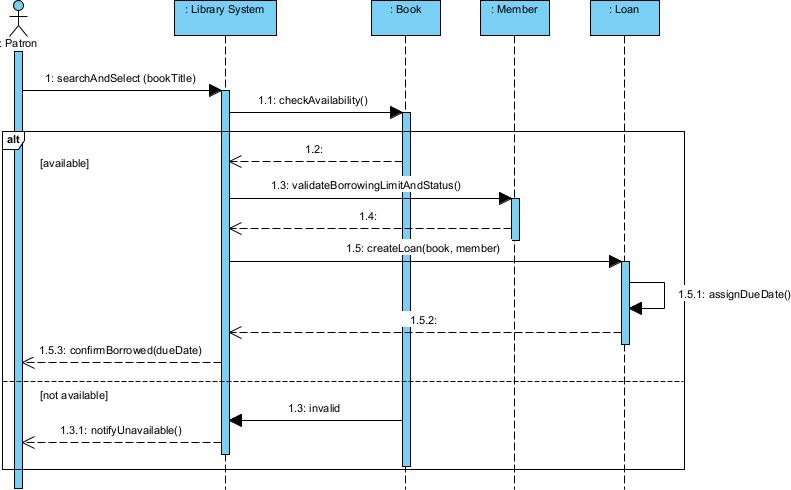
For precision and learning, create the diagram manually. We’ll model the **Borrow Book** happy path + simple alternative (book not available).
- Select Diagram > New from the main menu.
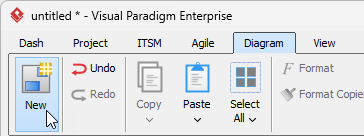
- Choose Sequence Diagram and click Next.
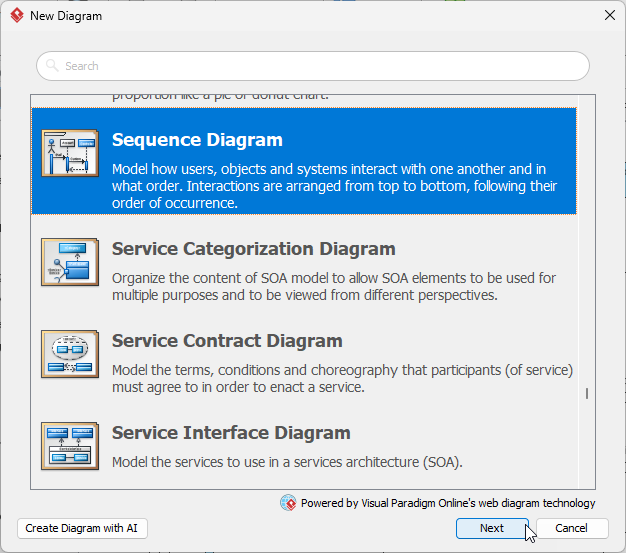
- Select Blank and click Next.
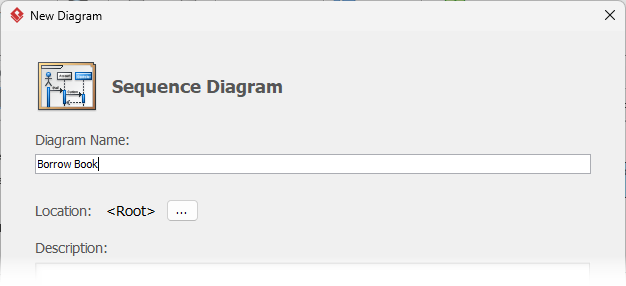
- Name the diagram (e.g., “Borrow Book”) and click OK.
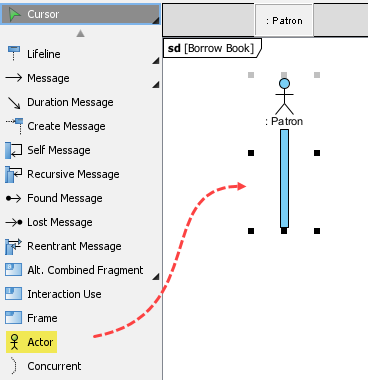
- Add lifelines: From the toolbar (left), click Actor, then click on the canvas. Name the first one :Patron (actor).
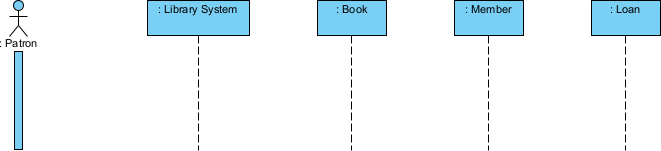
- Repeat by creating Lifelines: :LibrarySystem, :Book, :Member, :Loan. Arrange left-to-right: Patron → LibrarySystem → Book → Member → Loan.
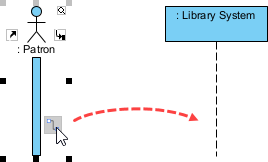
- Create the first message: Hover over :Patron actor, press on the Resource Catalog icon and drag towards the Library System lifeline.
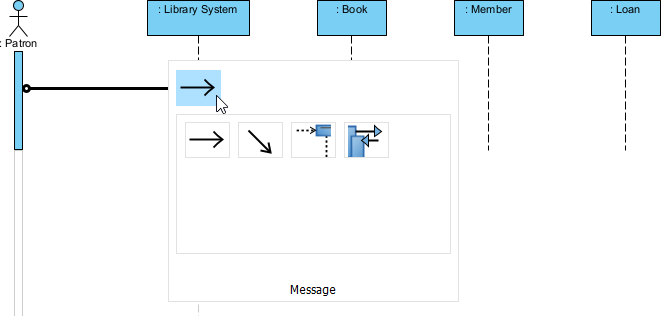
- Select Message.
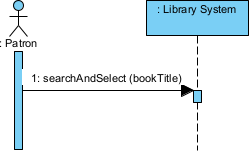
- Release the mouse button and name the message searchAndSelectBook(bookTitle).
- Continue messages for happy path:
- :LibrarySystem → :Book: checkAvailability() → reply available: true
- :Patron → :LibrarySystem: requestBorrow()
- :LibrarySystem → :Member: validateBorrowingLimitAndStatus() → reply valid: true
- :LibrarySystem → :Loan: createLoan(book, member)
- :Loan → self: assignDueDate()
- :LibrarySystem → :Patron: confirmBorrowed(dueDate)
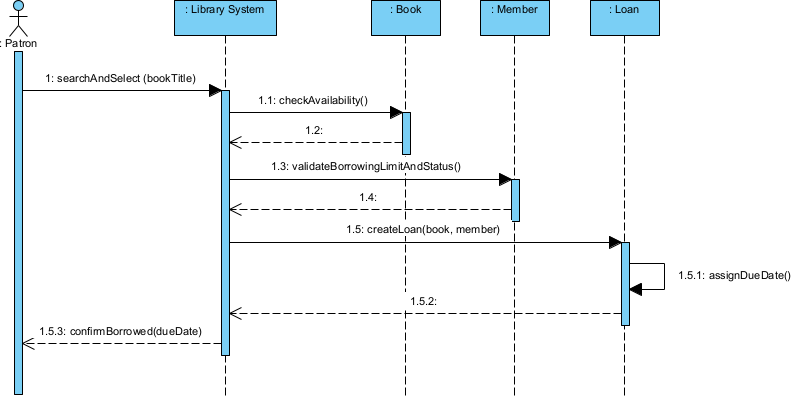
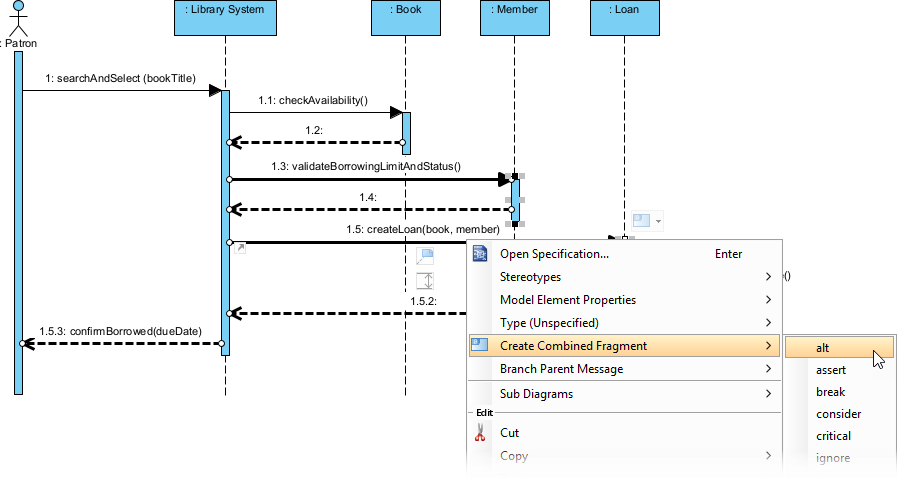
- Add alternative fragment for “book unavailable”: Select message from checkAvailability onward, right-click → Create Combined Fragment → choose alt.
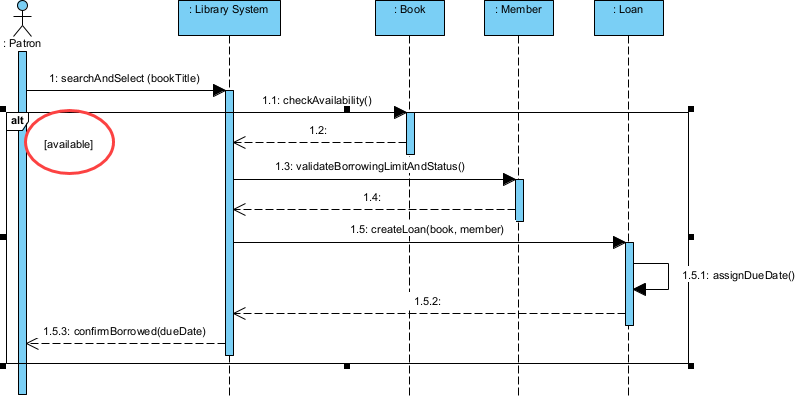
- Name guard: [available] for happy path. You can double click on [alt] to enter the guard.
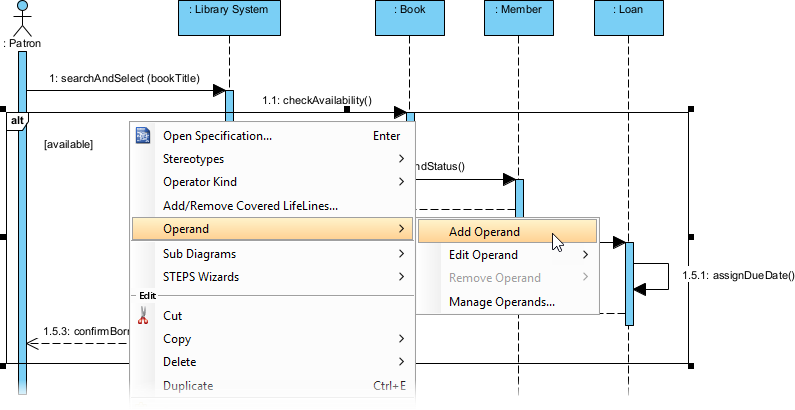
- Right click on the combined fragment and select Operand > Add Operand.
- Name the guard [not available] for else branch with reply notifyUnavailable() to Patron.
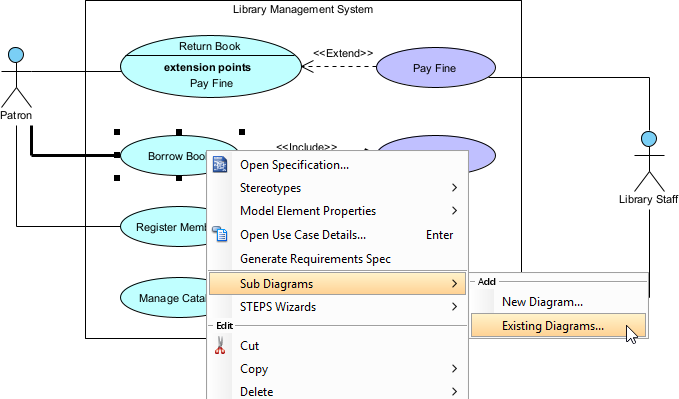
Tip: In Visual Paradigm, link this sequence diagram to the original Borrow Book use case:
- Right click use case Borrow Book and select Sub Diagrams > Existing Diagrams….
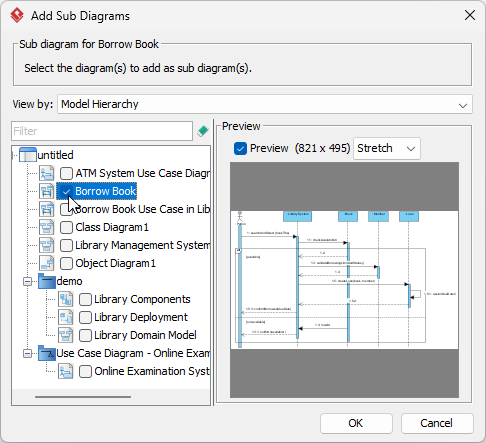
- Select the sequence diagram and click OK.
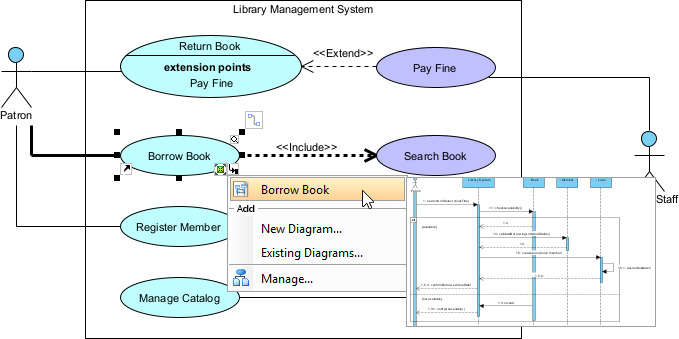
- From now on, you can easily open the sequence diagram from the use case model.
Excellent work! You’ve now bridged from static structure (classes/components) to dynamic behavior — directly realizing use case scenarios. Sequence diagrams are invaluable for spotting interaction issues early, writing unit/acceptance tests, and communicating “how it works” to developers.