

In this practical session, you’ll take the next step from modeling to implementation by generating actual source code from your Class Diagram using Visual Paradigm’s Instant Generator. This feature turns your domain classes (e.g., Book, Member, Loan) into ready-to-use code skeletons — complete with attributes, accessors, and relationship navigation — saving hours of boilerplate writing.
By generating code from the same Library Management domain model you created in Practical 3, you’ll see perfect traceability: use cases → classes → code. In Agile projects, this supports rapid prototyping, TDD (test-driven development), and keeps model and code in sync via round-trip engineering.
Generating Code from the Class Diagram
Visual Paradigm’s Instant Generator supports multiple languages (Java, C#, Python, C++, etc.). We’ll use Java as the example, but the steps are identical for others.
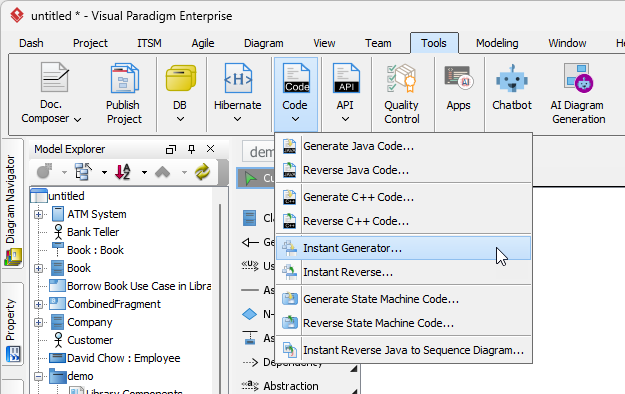
- Go to the main menu: Tools > Code > Instant Generator….
-
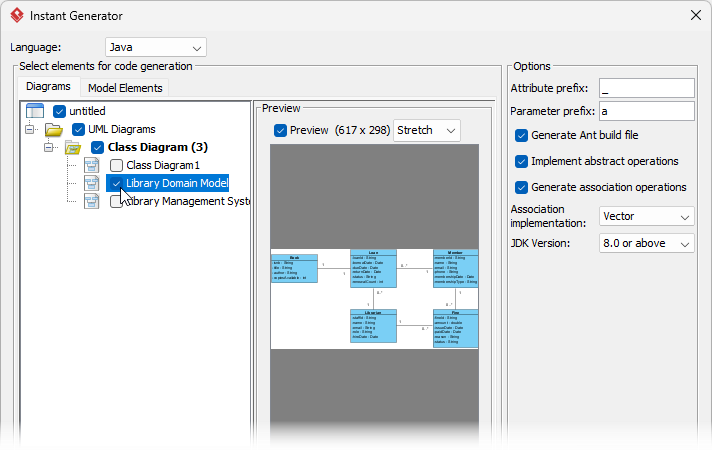
In the Instant Generator window, the left pane shows available diagrams and elements. You have two main options:
- Option A (recommended for whole domain): Select the entire Class Diagram (e.g., “Library Domain Model”). This generates code for all classes in the diagram at once.
- Option B (selective): Expand the diagram and check individual classes (e.g., only Book, Member, Loan) if you want to generate code for a subset.
Check the box next to your class diagram or selected classes.
- Other settings:
- Language: Choose your preferred language. (Select Java in this tutorial)
- Template: Use the default (or select a custom one if you have configured templates for getters/setters, constructors, etc.).
- Output path: Click the folder icon and browse to a folder on your computer (e.g., C:\Projects\LibrarySystem\src\main\java). This is where the .java files will be saved.
Make sure the path is valid and writable.
- Click Generate at the bottom right. Visual Paradigm will create one .java file per selected class.
- After generation completes, open the output folder in your file explorer. You should see files like:
- Book.java
- Member.java
- Loan.java
- Librarian.java
- Fine.java
Each file contains:
- Private attributes matching your diagram
- Public getters and setters
- Basic constructors
- Navigation fields for associations (e.g., List<Loan> loans in Member class)
- (Optional) Open one file (e.g., Book.java) in an IDE or text editor to review. You can now add business logic, annotations (@Entity for JPA, etc.), or implement methods.
Tips for Effective Code Generation
- Before generating, ensure your class diagram has:
- Proper attribute types (String, int, Date, etc.)
- Visibility set (+ public, – private)
- Multiplicities on associations (so collections like List<Loan> are generated correctly)
- Use round-trip engineering later: Modify code → reverse engineer back to model (Tools > Code > Reverse Engineering…) to keep them synchronized.
- Customize templates: Go to Tools > Instant Generator > Configure… to add Lombok annotations (@Data, @Getter), JPA (@Entity, @Id), or custom headers.
- Generate only once per package/folder to avoid overwriting custom code — use separate folders for model-generated vs. handwritten code.
Well done! You’ve now completed the full cycle: use cases → structural models (classes/components/deployment) → behavioral models (sequence) → executable code. This closes the loop in a use-case-driven Agile workflow — your Library Management System now has a solid, traceable foundation from requirements to running code.