


One of the most exciting things about modern AI UML tools is how quickly they turn your ideas into visuals. You write a short description of a process, system, or structure in everyday language, and within seconds you have a structured, standards-compliant UML diagram ready to use, share, or refine.
This guide walks you through the absolute basics of how text-to-diagram AI works, what makes it so fast and effective, and how beginners can get great results right away. By the end, you’ll understand the core workflow and be ready to create your own diagrams in minutes.
What “Text to Diagram” Really Means in AI UML Generators
At the heart of every good AI UML generator is natural language processing (NLP) combined with UML knowledge. You don’t draw anything. Instead, you describe:
- Who is involved (actors, users, systems)
- What happens (actions, steps, decisions)
- How things connect (relationships, sequences, states)
The AI parses your words, matches them to UML concepts, and automatically generates the diagram. No toolbar, no drag-and-drop—just your description.
The Simple Step-by-Step Process Most Tools Follow (A VP Desktop Example)
- Enter your text prompt
Write a clear, structured description. Example: “A student searches for courses, views details, enrolls if spots are available, and receives a confirmation email from the registrar.”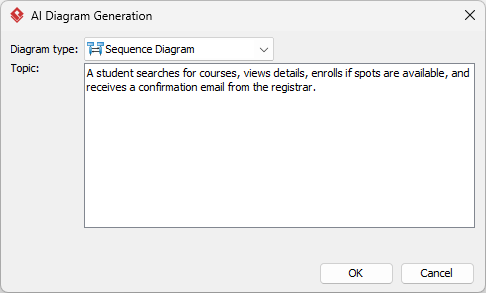
- AI analyzes and maps
It identifies:- Actors → Student
- Objects/Entities → Course Search Page, Course Catalog
- Flow → Search → View → Enroll
- Decisions → Spots available?
- Diagram is generated
The tool places elements correctly and applies proper UML notation (arrows, diamonds, multiplicities, etc.).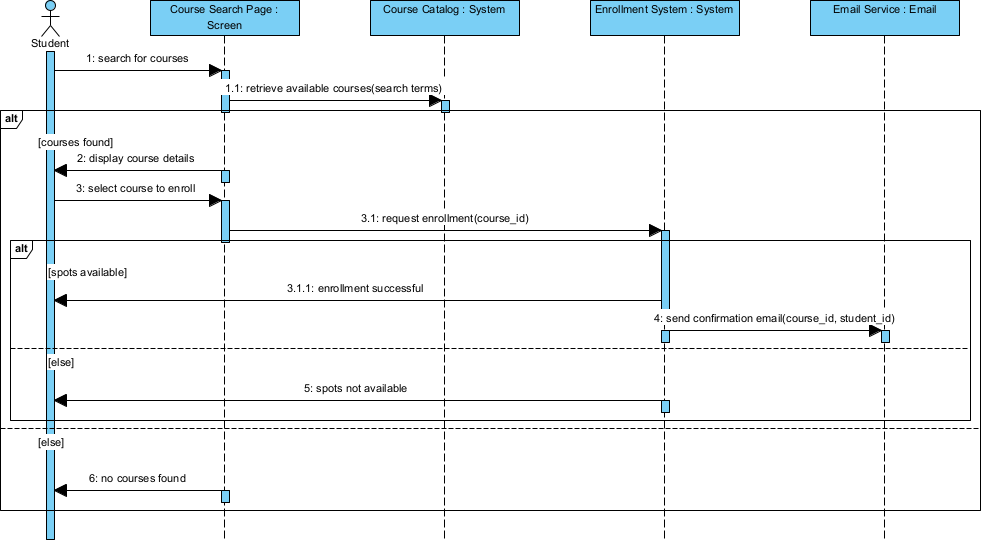
- Review and refine
Visual Paradigm Desktop lets you:- Edit elements’ properties
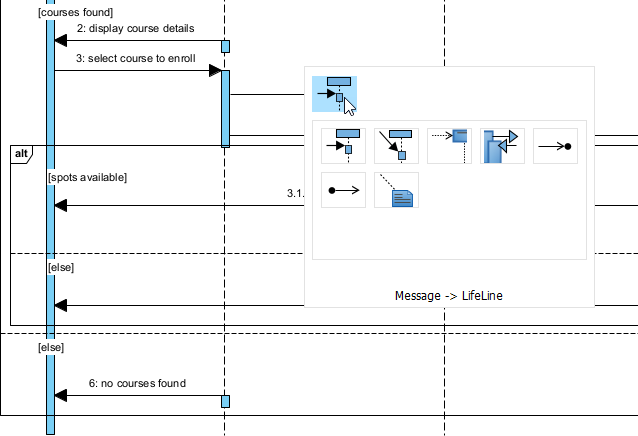
- Manually adjust layout or elements
- Create new elements
- Edit elements’ properties
- Export or share
Save as PNG, SVG, PDF, or copy to clipboard – ready for reports, presentations, or collaboration.
The whole cycle often takes 1–5 minutes for simple to medium diagrams.
Best Practices for Writing Effective Text Prompts
The quality of your diagram depends heavily on how clear your description is. Here are quick tips that make a big difference for beginners:
- Be specific: “Customer” is better than “user”; “pays with credit card” is better than “completes payment”
- Use active voice and sequence words: first, then, if, after, while
- Break complex ideas into smaller parts if needed
- Specify diagram type when possible: “Create a sequence diagram for…” or “Show this as a use case diagram”
- Include key constraints: “maximum 5 items in cart”, “only logged-in users can checkout”
Good prompt example: “An online bookstore customer searches books by title or author, views book details including price and reviews, adds selected books to cart (up to 10), proceeds to checkout if logged in, enters shipping address and payment, and receives order confirmation.”
Common Diagram Types You Can Create from Text
| Diagram Type | When to Use It | Sample Text Prompt Starter |
|---|---|---|
| Use Case | Show user goals and system interactions | “Actors: Customer, Admin. Goals: browse catalog, place order, manage inventory…” |
| Activity | Business workflows and processes | “Steps for employee onboarding: HR interview, background check, contract signing…” |
| Sequence | Interactions over time between objects | “User → App → Server: login request, validate credentials, return token…” |
| Class (basic) | Main entities and their relationships | “Entities: Order, Customer, Product, Payment. Relationships: Order has many Products…” |
Visual Paradigm: Fast and Flexible Text-to-Diagram Options
Visual Paradigm makes the text-to-diagram experience especially beginner-friendly with multiple entry points tailored to different preferences:
- AI Visual Modeling Chatbot – The fastest way: just chat your description naturally and refine conversationally—no forms or menus.
- Web Apps – Guided text input with step-by-step suggestions, great for structured beginners who want a bit of hand-holding.
- OpenDocs – Write descriptions inside documents and generate diagrams inline—perfect when you’re already drafting requirements or reports.
- VP Desktop – Full control: generate from text, then edit precisely in a powerful modeling environment.
You can start with the simplest method (chat or web) and move to more advanced platforms as your diagrams grow—all keeping everything synced. To see how these four platforms interconnect for seamless text-to-diagram workflows, check out: Visual Paradigm AI Diagram Generator Ecosystem.
Quick Wins to Try Today
- Describe your daily work routine as an activity diagram
- Map a simple login process as a sequence diagram
- Outline the main features of an app you’re using as a use case diagram
Each takes just a few minutes and gives you instant, professional-looking results.
Related posts:
 Visualizing Complex System States with the AI Object Diagram Generator in Visual Paradigm
 Visualizing Complex E-Commerce Infrastructure: Mastering the AI Deployment Diagram Generator with Visual Paradigm
 AI-Powered Use Case Diagrams with Visual Paradigm: The Ultimate Guide
 What is an AI UML Generator and Why Should Beginners Use It?