1. Introduction: The New Era of System Modeling
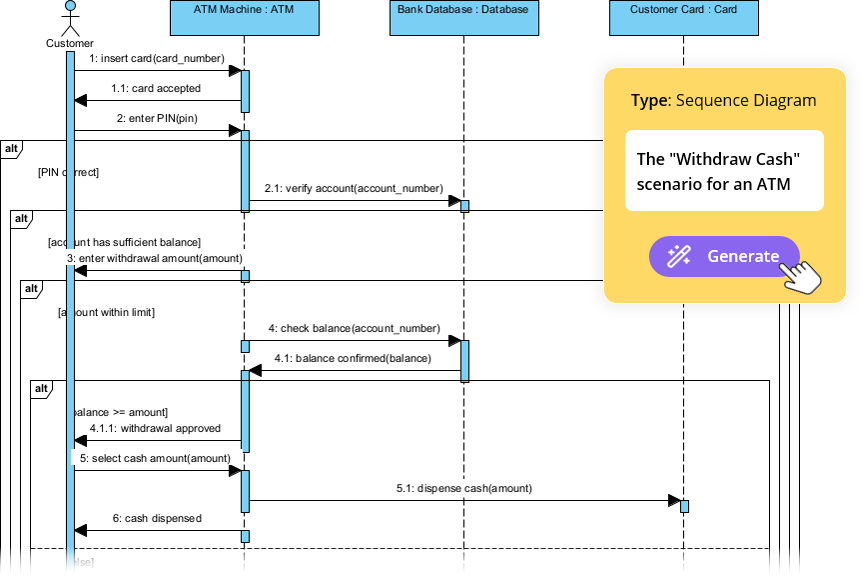
Starting any major Software Design project often begins with the most daunting task: facing a blank canvas. Whether you are creating a complex UML structure or mapping out business processes, manually placing and connecting every element is time-consuming and challenging.
Introducing the revolutionary AI Diagram Generation feature in Visual Paradigm.
This powerful AI tool allows users to transform a simple topic or system description, written in plain language, into a structured, well-laid-out diagram instantly. This capability accelerates your initial design phase, letting you focus on refining logic rather than drawing lines. Visual Paradigm’s AI Diagram feature is here to make System Modeling faster and smarter.
2. What is Visual Paradigm’s AI Diagram Feature?
The AI Diagram Generation feature leverages advanced natural language processing (NLP) to understand the entities, concepts, and relationships within your text input.
How it works:
- Intelligent Analysis: The AI processes your topic and applies core modeling standards (like UML rules) to determine the necessary elements and connections.
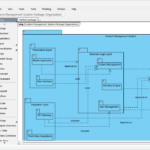
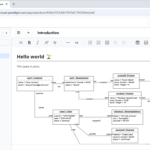
- Native Output: The generated output is not a static image, but a fully editable, native Visual Paradigm diagram file. This means you can immediately manipulate elements, change styles, and continue modeling without any conversion steps.
- Automatic Layout: A key benefit is the AI’s ability to ensure a “very good layout” right from the start. This saves hours of manual alignment and repositioning, delivering a professional diagram instantly.
3. Step-by-Step: How to Generate Diagrams with AI in Visual Paradigm
This section walks you through the four essential steps to start using the AI Diagram Generation feature today.

Step 3.1: Launching the AI Diagram Generator
To begin, simply access the feature from the main application menu:
Go to Tools > AI Diagram
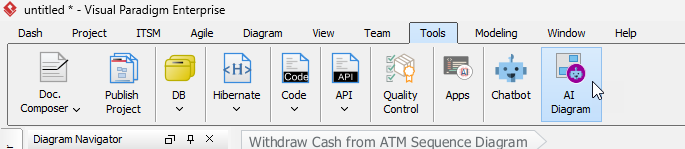
A dedicated popup window will appear, ready to accept your instructions.
Step 3.2: Selecting the Target Diagram Type
Before providing the text, you must specify the context for the AI. This tells the system which modeling rules to apply:
Select the diagram type you wish to create (e.g., Use Case Diagram, Class Diagram, Sequence Diagram, Requirement Diagram, PERT Chart, etc.).
This choice is crucial because it focuses the AI’s analysis. For instance, selecting “Use Case Diagram” directs the AI to identify actors and functional requirements, whereas selecting “Class Diagram” tells it to identify classes, attributes, and methods.
Step 3.3: Entering Your Topic or System Description
This is the critical input step where you provide the natural language description of your system. Explain the need for clarity and detail in your input.
Provide examples of effective topics:
For Use Case Diagram: “An online library system that handles user login, book searching, borrowing, returns, and overdue notifications.”
For Class Diagram: “A simple point-of-sale system that includes Products with price and quantity, Orders that contain multiple order items, and Payment Methods like cash or card.”
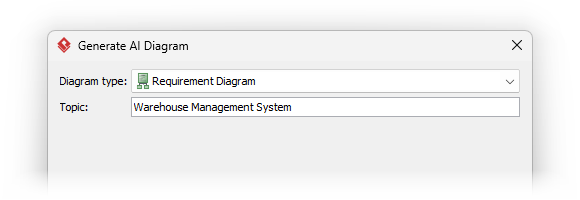
The AI will analyze these detailed entities and relationships in the text to construct the diagram elements and their corresponding connections.
Step 3.4: Generating and Reviewing the Initial Diagram
Once your topic is entered, click OK.
The Diagram Generation process will execute swiftly.
The new diagram opens immediately a new diagram editor.
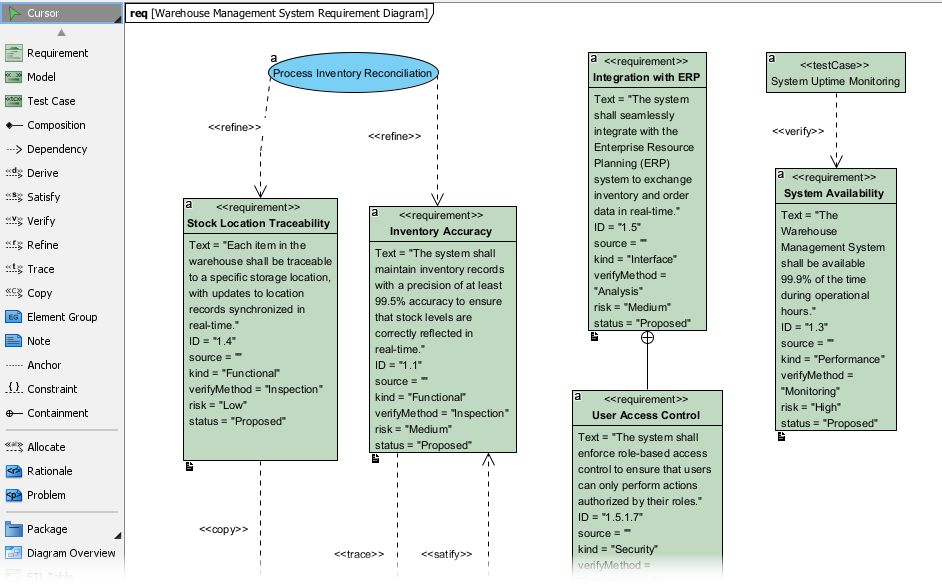
Take a moment to review the initial structure. You will notice that the elements are already placed logically and organized with an optimized layout, providing an excellent starting point for your System Modeling.
4. Maximizing Your Workflow: Editing and Continuing Modeling
While the AI Diagram feature provides a fantastic foundation, it is designed to initiate your work, not complete it. The generated structure typically accounts for 80% of the effort; you supply the final 20% of detail and refinement.
- Refinement: Drag elements, add specific data types to attributes, or assign methods to classes.
- Detailing: Add crucial details, change relationships from simple associations to generalizations or aggregations, and refine labels to meet specific project standards.
- Speed: This feature significantly speeds up the overall Software Design lifecycle by handling the tedious initial setup. Instead of spending hours drawing basic shapes, you move straight into high-value analytical work, refining complex UML elements and ensuring the model meets all requirements.
5. Conclusion: Faster, Smarter System Design
The ability to turn a text description into a fully formatted diagram is a massive leap forward in productivity. By leveraging AI Diagram Generation in Visual Paradigm, you can eliminate the friction of starting a new project and dedicate more time to the architectural decisions that matter most.
Start leveraging the power of Visual Paradigm’s AI today to accelerate your System Modeling and elevate the quality of your Software Design artifacts.
Experience AI Diagram Generation for Yourself
Ready to put theory into practice? You can now explore AI Diagram Generation Tool.
Related Links
- Visual Paradigm Chat – AI-Powered Interactive Design Assistant: An interactive AI chat interface that helps users generate diagrams, write code, and solve design challenges in real time.
- AI Diagram Generation Features in Visual Paradigm: Explore the advanced AI capabilities in Visual Paradigm that enable users to generate diagrams from natural language descriptions.
- New Diagram Types Added to AI Diagram Generator: DFD & ERD: Announcement of expanded AI diagram generation support for Data Flow Diagrams (DFD) and Entity Relationship Diagrams (ERD).
- AI Diagram Generator Now Supports Package Diagrams in Visual Paradigm: New release enabling AI-generated package diagrams for better software architecture visualization.
- AI Diagram Generator Adds Radar Chart Support: Visual Paradigm introduces AI-powered radar chart generation for visualizing complex performance and capability metrics.
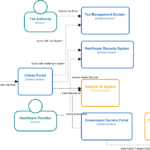
- Comprehensive Tutorial: Generating ArchiMate Diagrams with AI: In-depth tutorial showing how to use Visual Paradigm’s AI diagram generator to create ArchiMate diagrams and viewpoints efficiently.
- AI-Powered Diagram Generation: New Features for UML Timing Diagrams: Announcement of AI-driven enhancements in Visual Paradigm that enable automatic generation of UML timing diagrams, improving speed and accuracy in system modeling.
- Comprehensive Tutorial: AI-Powered ArchiMate Diagram Generation in Visual Paradigm Desktop: Step-by-step guide to using AI to create professional ArchiMate diagrams in Visual Paradigm Desktop for enterprise architecture modeling.
- How Visual Paradigm Uses AI to Generate ArchiMate Diagrams: Learn how Visual Paradigm integrates AI to automate and enhance ArchiMate diagram creation, improving speed and accuracy for enterprise architects.
- Generating Scenarios and Test Cases from Use Case Diagrams Using AI: A comprehensive guide on leveraging AI-powered tools to automatically generate test scenarios and cases from use case diagrams.