


Why Traditional UML Tools Are Tough for Non-Techies
Before AI changed the game, creating UML diagrams meant:
- Memorizing dozens of symbols and their precise meanings
- Learning complex software interfaces with hundreds of toolbar options
- Spending more time on layout and formatting than on actual ideas
- Fearing criticism because one wrong arrow could invalidate the whole diagram
For non-technical stakeholders, the effort often outweighed the benefit. Many simply avoided diagrams altogether or relied on vague sketches that didn’t capture important details.
How AI UML Generators Remove the Barriers
1. Speak Naturally – No Notation Required
Instead of dragging classes and drawing associations, you write sentences like:
“A customer browses the online store, selects products, adds them to a shopping cart, proceeds to checkout, enters payment details, and receives a confirmation.”
The AI understands the flow and instantly produces a correct sequence or activity diagram—no symbol lookup needed.
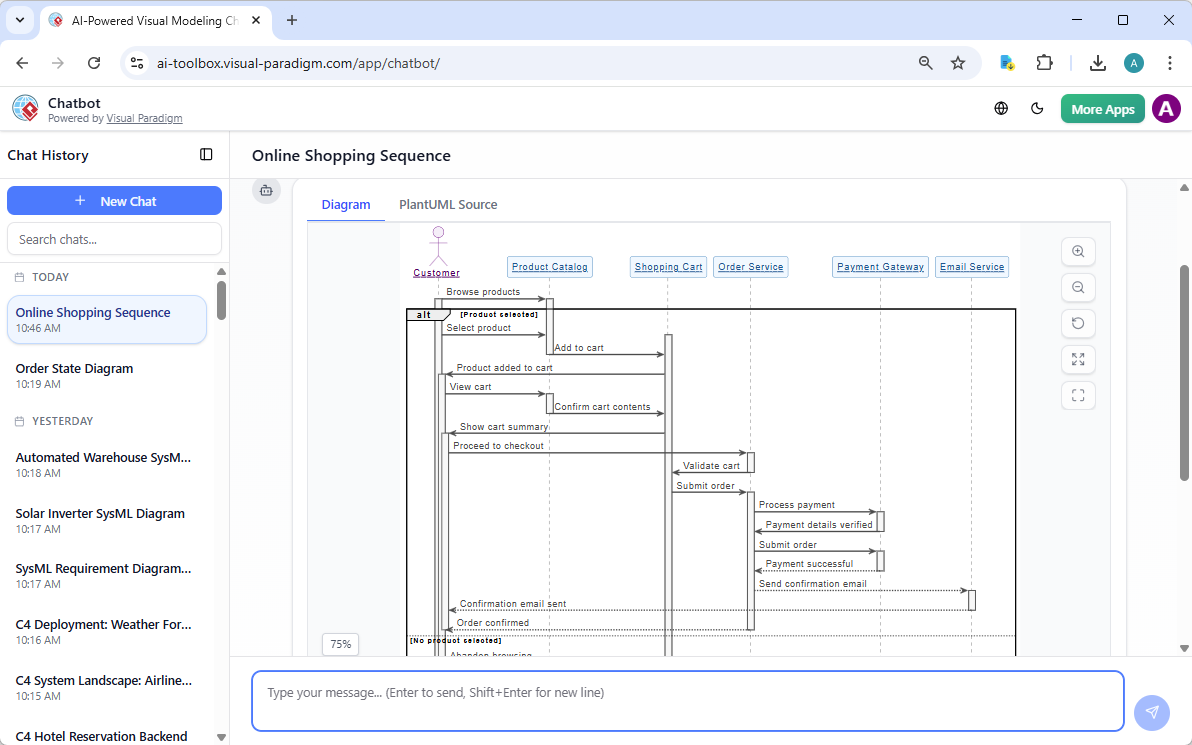
2. Focus on Ideas, Not Pixel-Perfect Layout
AI tools automatically arrange elements logically, apply consistent styling, and handle spacing. You get a readable diagram without dragging anything around. If something looks off, a quick edit or follow-up prompt fixes it.
3. Instant Feedback and Iteration
Describe a process → see the diagram → spot something missing → add a sentence like “Include admin approval step” → regenerate. This rapid loop lets non-techies refine ideas quickly without technical debt piling up.
4. Built-in Explanations for Learning on the Fly
Many modern tools highlight what each element means or why certain connections were made. You learn UML concepts passively while creating useful diagrams—perfect when you need to present to developers or executives.
Real Scenarios Where Non-Techies Benefit Most
- Product managers mapping user journeys and feature flows before handing specs to engineering
- Business analysts documenting current processes and proposed improvements for stakeholders
- Project managers visualizing dependencies and workflows in status meetings
- Consultants quickly modeling client systems during discovery workshops
- Entrepreneurs sketching MVP architecture to discuss with potential developers or investors
In each case, the goal is clear communication—not UML certification. AI makes that possible without requiring deep technical expertise.
Common Diagram Types Non-Techies Create Easily with AI
| Diagram Type | Typical Use for Non-Techies | Example Prompt |
|---|---|---|
| Use Case Diagram | Show who does what in the system | “Customer, admin, and guest interact with an e-commerce platform” |
| Activity Diagram | Document business processes and workflows | “Describe the steps for approving a loan application in a bank” |
| Sequence Diagram | Illustrate interactions over time | “User logs in, system validates credentials, returns session token” |
| Class Diagram | Outline main entities and relationships | “Basic entities in a hotel booking system: guest, room, reservation, payment” |
Visual Paradigm: Making UML Truly Accessible for Everyone
Visual Paradigm has built its AI UML generator with non-technical users in mind. The four connected platforms give you flexibility based on your workflow:
- Web Apps – Start in your browser with guided, step-by-step creation—no software to install, perfect for quick business process sketches.
- AI Visual Modeling Chatbot – Talk naturally: “Show me the flow when a user forgets their password.” Refine by chatting back and forth.
- OpenDocs – Embed live, updatable diagrams directly in reports, proposals, or requirements documents—ideal for sharing with stakeholders.
- VP Desktop – Switch here when you need advanced editing or want to combine AI-generated diagrams with manual refinements.
This ecosystem approach means you can begin with the simplest method (chat or web) and scale up as your needs grow—all while keeping everything connected. For the full explanation of how these platforms work together to support non-technical users, read: Visual Paradigm AI Diagram Generator Ecosystem.
Tips for Non-Techies to Get Great Results Fast
- Use clear, step-by-step language (avoid vague terms like “stuff happens”)
- Start small—one process or interaction at a time
- Ask the AI to explain confusing parts (“What does this arrow mean?”)
- Export early versions to get feedback before polishing
- Combine AI output with simple annotations in your documents
Ready to Make Diagramming Easy?
You no longer need to be a developer or spend weeks learning UML software to create valuable diagrams. An AI UML generator puts the power of clear visual communication in the hands of anyone who can describe a process in words.
Pick one business flow or user scenario you deal with regularly, open a tool like Visual Paradigm’s web app or chatbot, and describe it in plain language. In minutes you’ll have a professional diagram ready to share—without the usual headaches.
Non-tech professionals who start using these tools often say the same thing: “I wish I’d known about this years ago.”
What process would you like to diagram first? Have you ever struggled with UML as a non-technical person? Leave a comment—I’d love to know your experience!